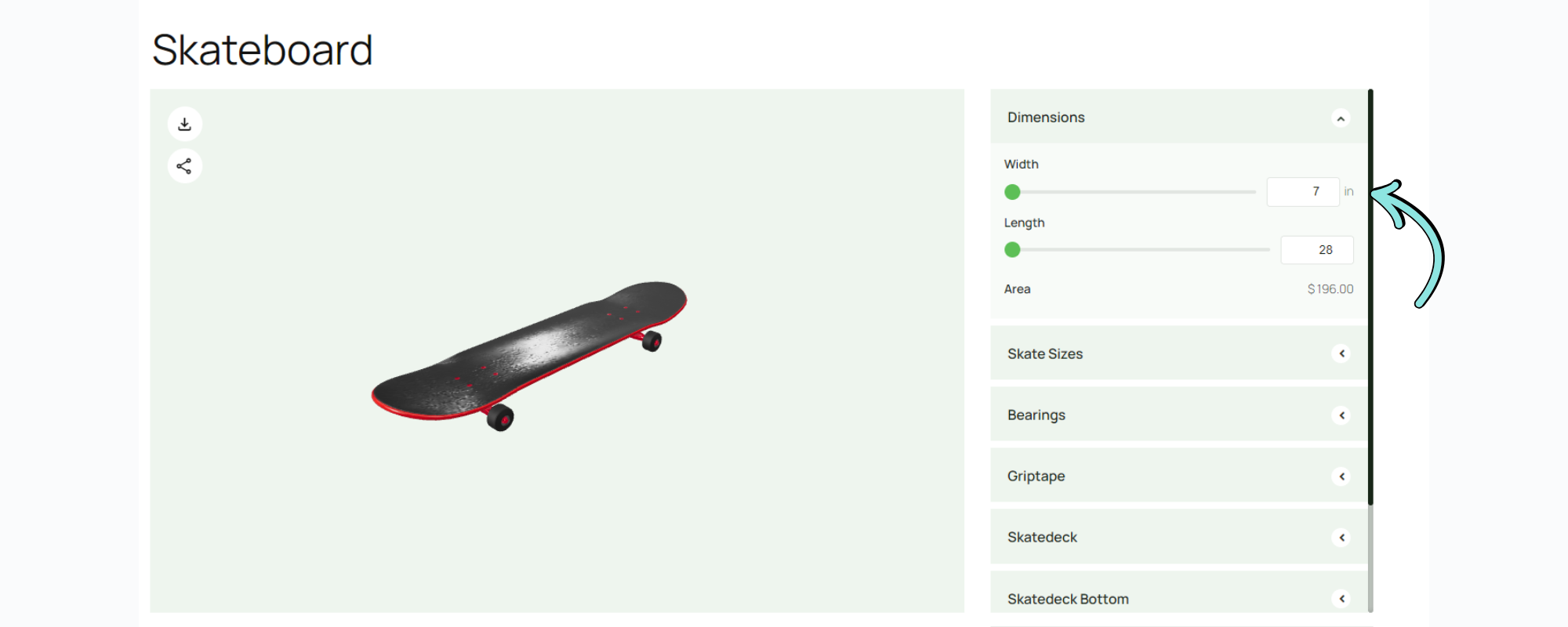
Dynamic Range Pricing lets a product’s price follow the numbers a customer sets on Range sliders, such as width, length or quantity, and updates live as they move.
What it is
It is a pair of layers that work together:
- A Range layer gives the customer a slider or number box with a minimum, maximum, step and unit.
- A Formula layer reads one or more Range layers and works out a number. It then either adds that number to the price or only shows it.
The customer never fills in the Formula. It updates by itself as they change the layers it reads.
What you can use it for
- Price by area, such as 45 per square metre of glass, or $1 per square inch of skateboard deck.
- Price by length, such as trim around the edge of a window.
- Add a surcharge only in some cases, such as on oversize openings.
- Charge volume prices, price bands or minimum charges.
- Work out a count, such as how many panes a window needs.
- Show a figure without charging for it, such as “Opening area 1.80 m²” or a lead time.
How it works
- The customer sets a number on a Range layer, for example Width 7 in and Length 28 in.
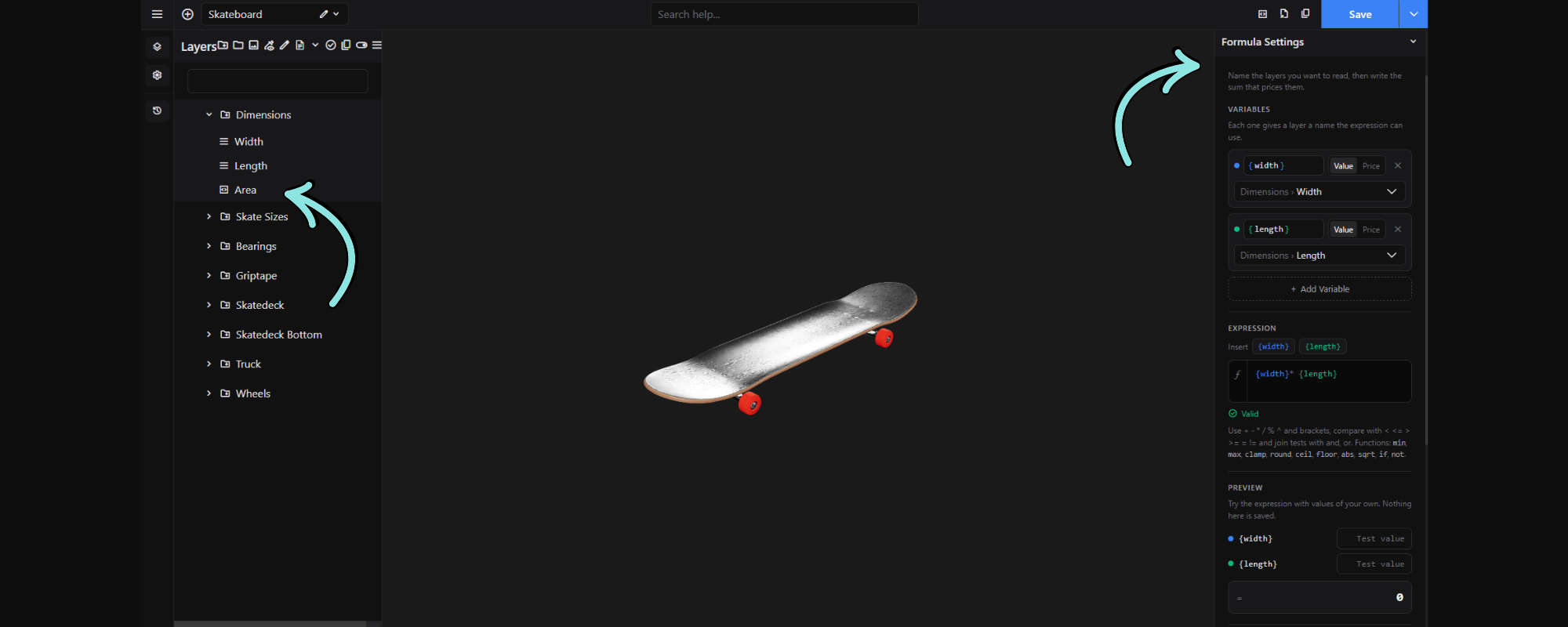
- A Formula layer reads those Ranges through named variables and applies your expression, for example
{width} * {length}. - The result is shown as a row on the page and, if you chose Add to the price, added to the total.
- When the customer adds to cart or asks for a quote, your store works every formula out again from their choices, so the page can’t change what they pay.
Where to find it
1. Turn on the modules
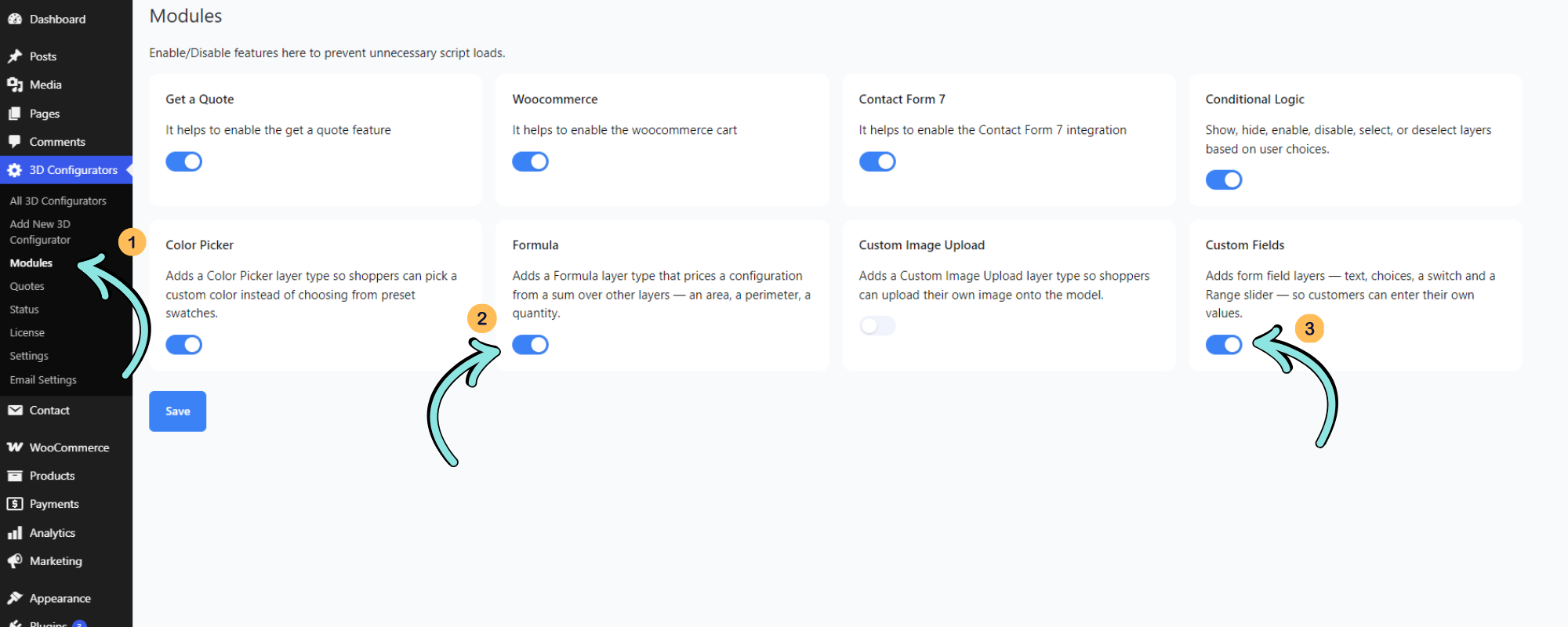
In your WordPress dashboard, go to 3D Configurators → Modules. Find Formula and turn it on.
2. Open your configurator
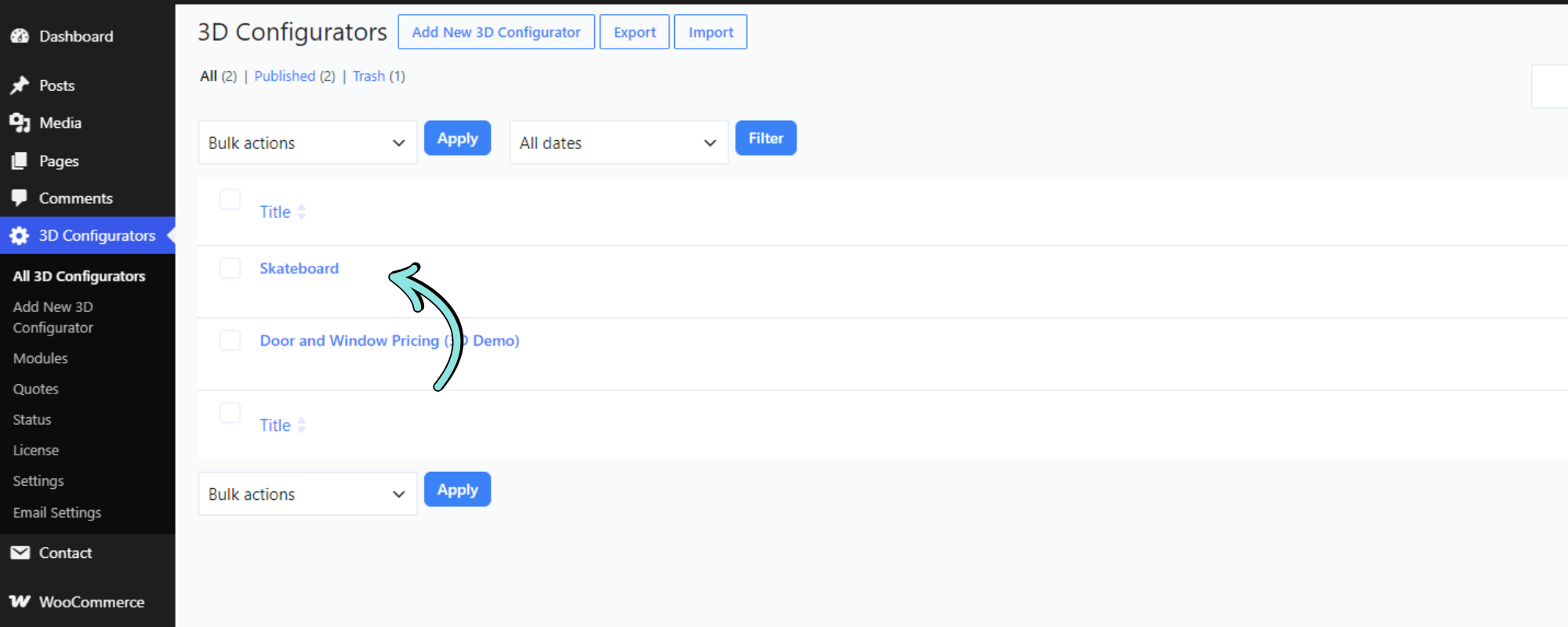
Go to 3D Configurators → All 3D Configurators and open the configurator you want to edit.
3. Find the Range settings
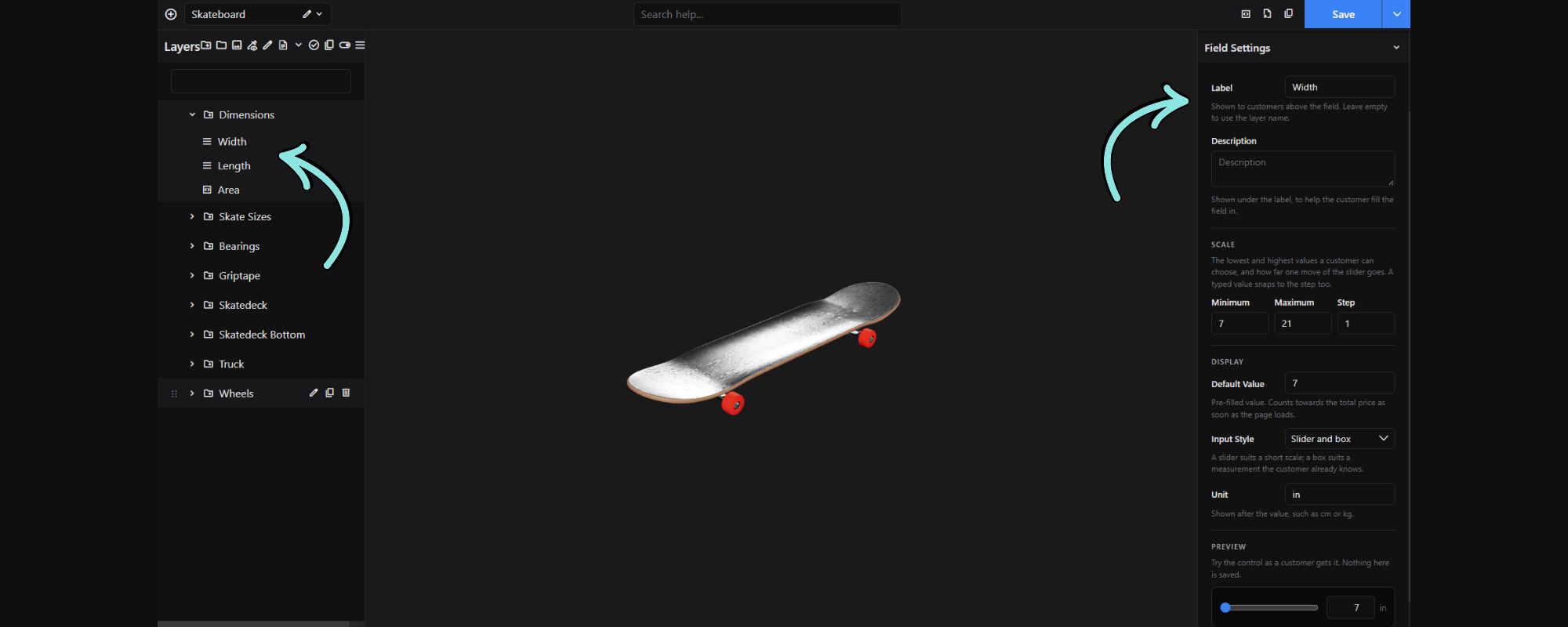
Select a Range layer in the layer list, such as Width or Length inside the Dimensions group. Its Field Settings open in the settings panel on the right. This is where you set the label, the minimum, maximum and step, the default value, the input style and the unit.
4. Find the Formula settings
Select the group the Formula belongs in, then click the Formula icon among the add-layer icons. Hover over an icon to see its name. A new layer is added to the group. Select it and its Formula Settings open in the settings panel on the right. This is where you add variables, write the expression, preview the result, and choose whether it is charged or only shown.
5. See the result on the product page
Open the product page and move the Range sliders. The Formula row beneath them, for example Area, and the Total Price update as the customer changes the values.