Audience: Shop owners setting up animations in the editor.
Not for: 3D artists. This covers the plugin settings, not how the model is built (see Preparing a Model for Model Animation (Blender) first).
Model Animation makes parts of your 3D product move: a bag that opens to show its inside, a lid that lifts, a handle that extends. You build named animations in the editor. Visitors play them by opening a group, or by picking a pose from a dropdown over the 3D view. The plugin only moves what the model already contains, so if the model has no movements built in, there is nothing to animate and no setting can add them.
How it works
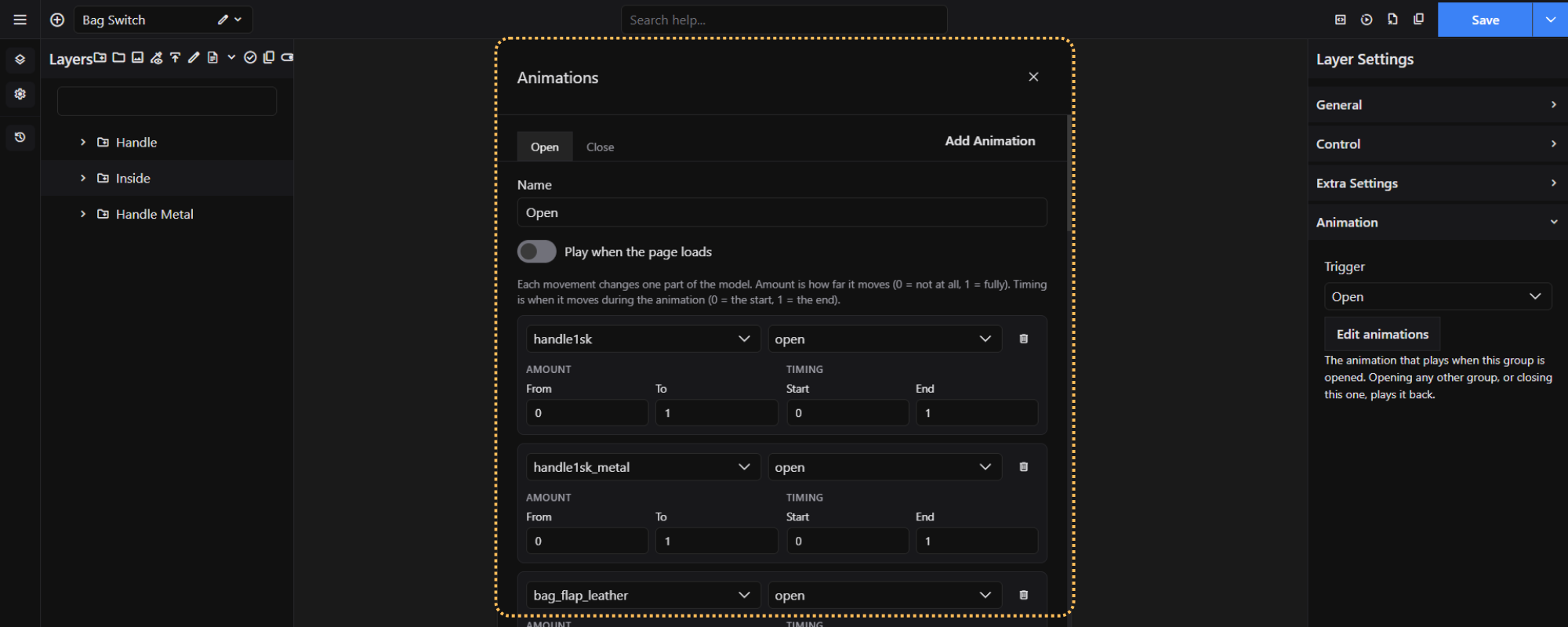
Each animation is a named pose, such as Closed or Open. An animation is made of one or more movements. A movement changes one part of the model (for example the lid) by a set amount, at a set time.
Animation "Open"
  Movement 1: Part Lid,  Movement Open  -> 0 to 1, during the first 60%
  Movement 2: Part Flap, Movement Lift  -> 0 to 1, during the last 50%
Only one animation is active at a time. The one that was activated last plays forward, and the others play back to rest. An animation with no movements is the resting pose.
| Term | Meaning |
|---|---|
| Animation | A named pose or motion, such as Closed or Open |
| Part | A piece of your model, such as Lid |
| Movement | What that part does, such as Open |
| Resting pose | The model with nothing moved |
Before you start
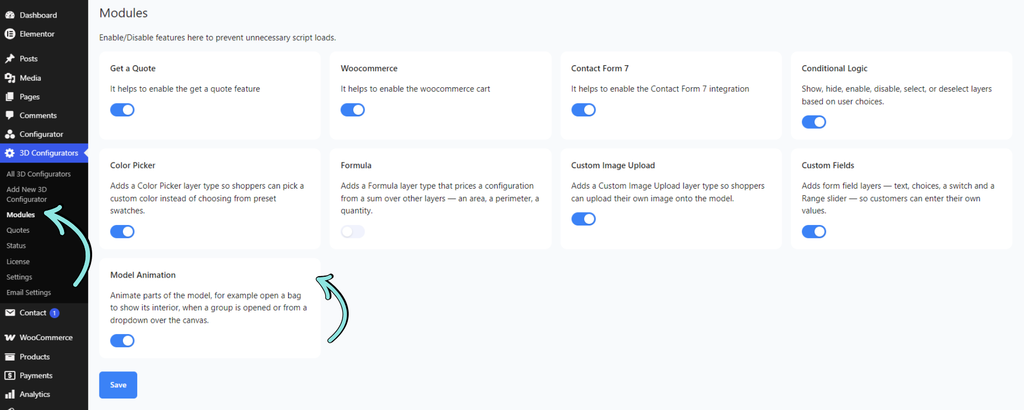
- Model Animation is enabled under wp3dconf → Modules.
- Your model has movements built in. If it does not, the panel says: “This 3D model has no built-in animations, so there is nothing to animate.”
- Pro version.
Workflow
1. Open the Animations panel
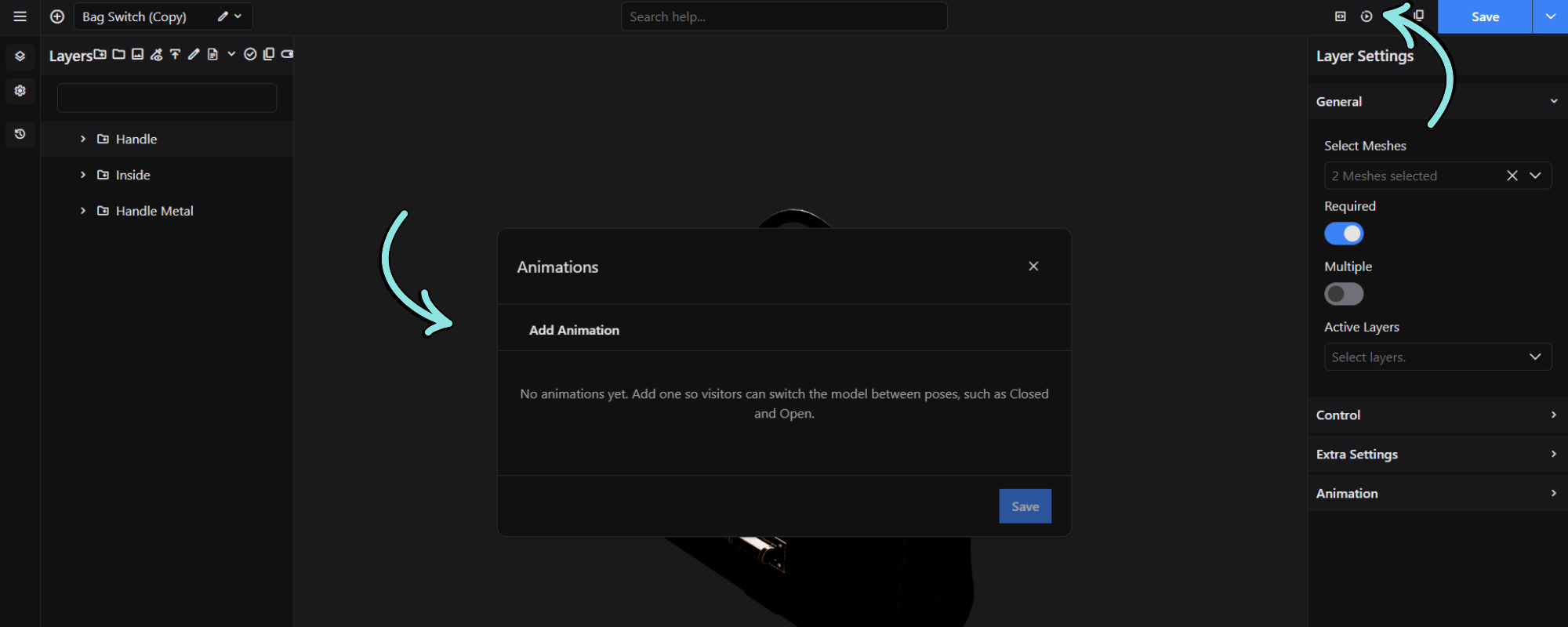
Load your model, then click the Animations (play) icon in the editor toolbar. A window opens that you can drag. If it says “Waiting for the model to load…”, wait a moment and reopen it.
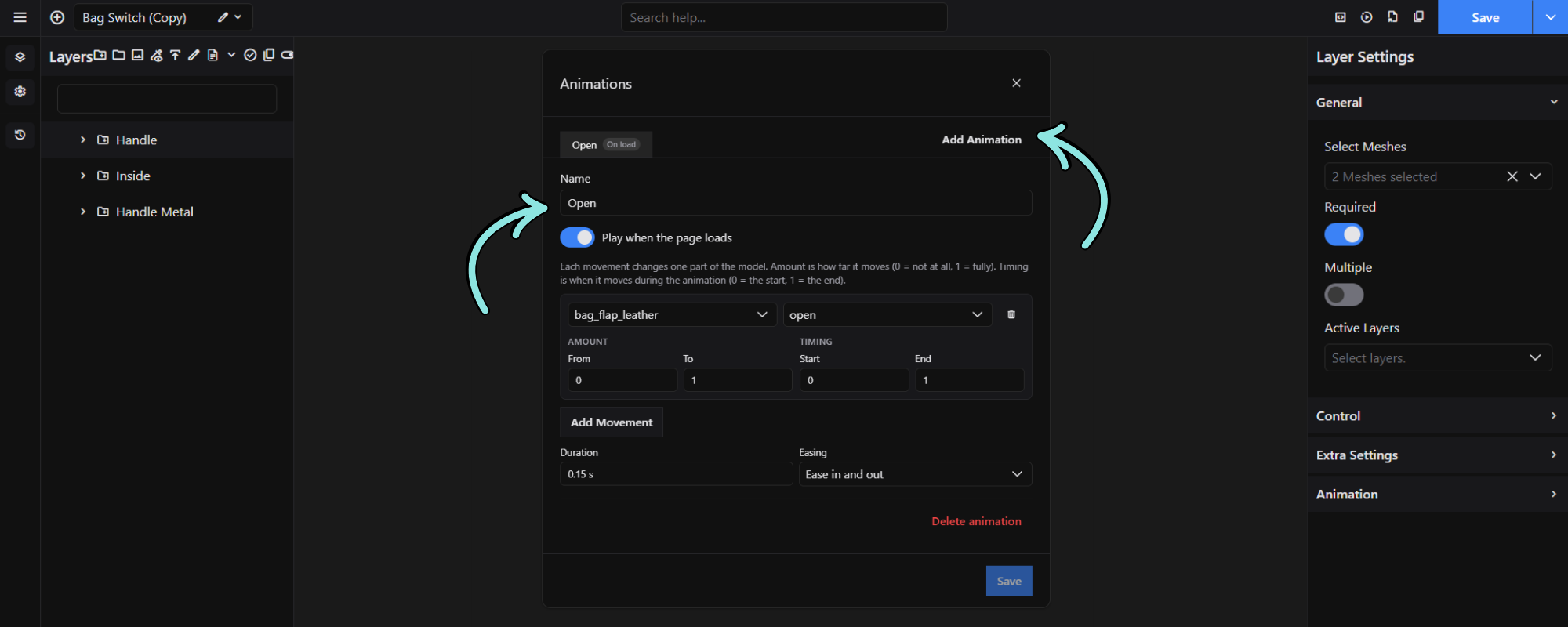
2. Add an animation
Click Add Animation, then set:
- Name: shown to visitors in the dropdown. Use plain names like Closed and Open.
- Play when the page loads: the pose the model starts in. Only one animation can have this (badge: On load).
- Duration: 0.05 to 10 seconds. About 1 second works well.
- Easing: Linear (constant speed), Ease in (slow start), Ease out (slow finish), Ease in and out (slow at both ends, a good default).
3. Add movements
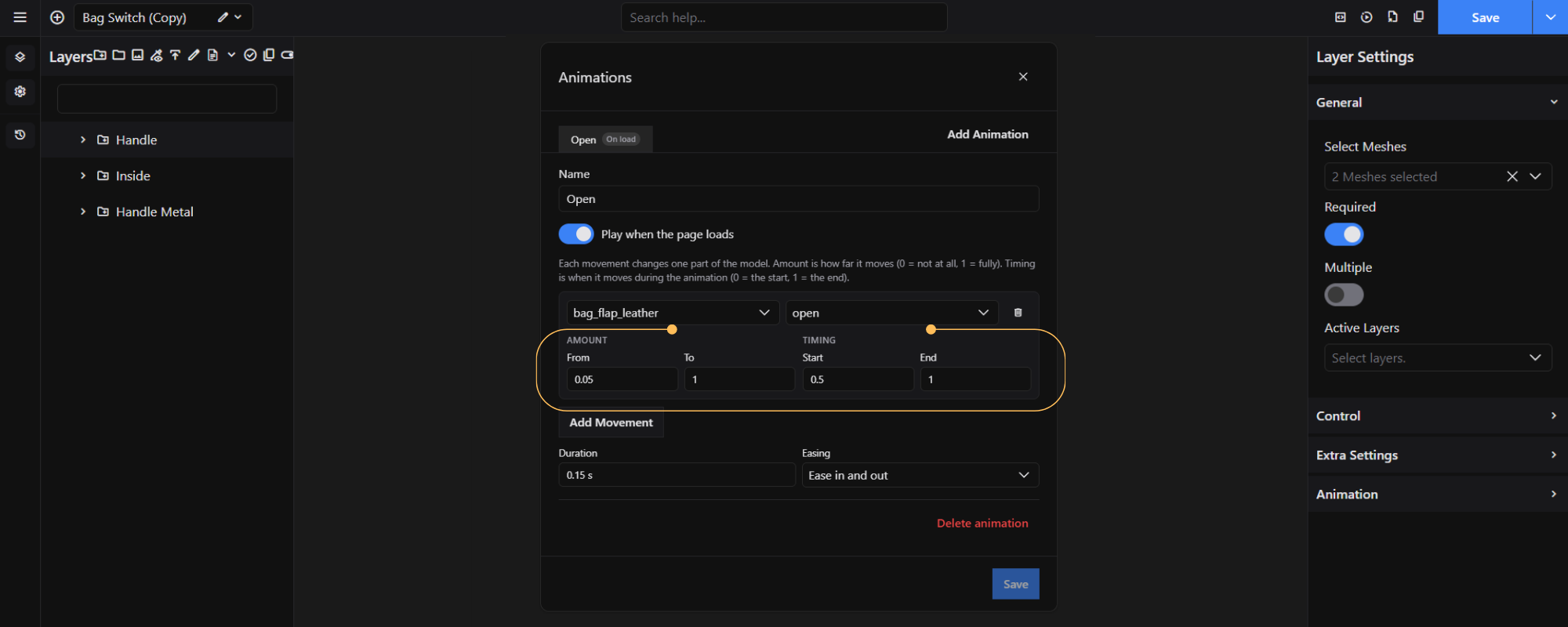
Click Add Movement for each thing that should move, then pick the Part and the Movement.
- Amount (From / To), 0–1: how far it moves. 0 is not at all, 1 is fully.
- Timing (Start / End), 0–1: when it moves during the animation. 0 is the start, 1 is the end.
To make things happen one after another, give them different timing. A lid at 0–0.5 and a flap at 0.5–1 means lid first, then flap. Use Preview to watch the result.
A part and movement pair can be used only once per animation.
4. Create a resting pose
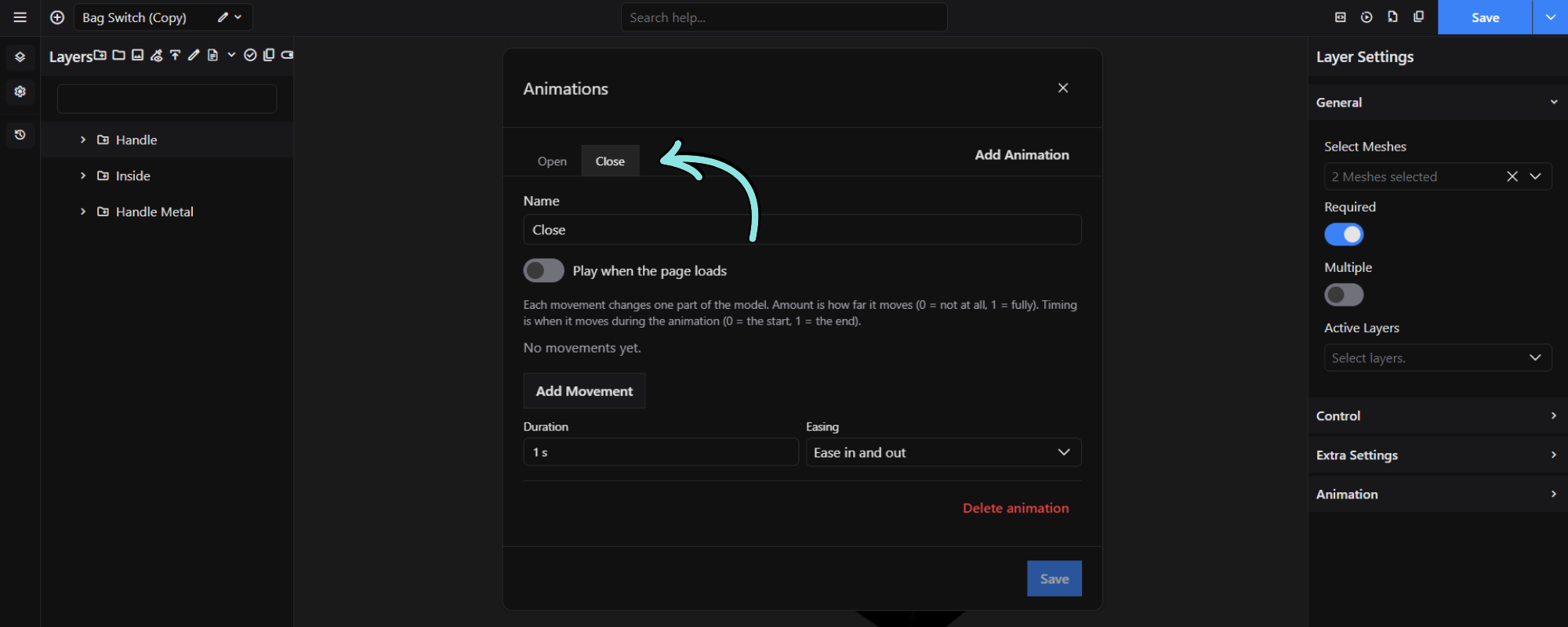
Add an animation called Closed with no movements and tick Play when the page loads. Choosing it sends everything back to rest, and the model starts in its normal state.
5. Save
Click Save, or use the editor’s normal Save. Both save your animations. Deleting an animation also removes it from any group that used it.
6. Play an animation from a group (optional)
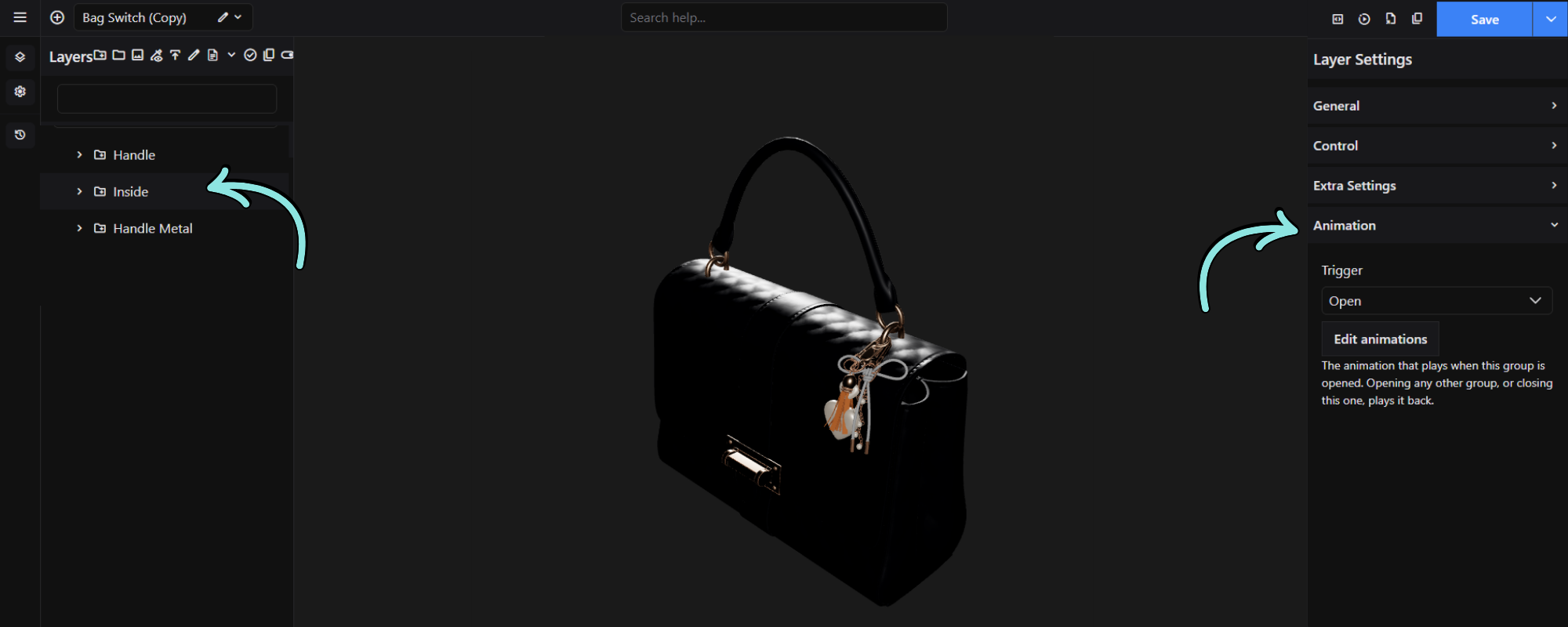
Select a group or sub group layer, open its Animation section, and choose the animation under Trigger.
| Visitor does | Result |
|---|---|
| Opens that group | The animation plays |
| Closes that group | It plays back to rest |
| Opens another group | It plays back; the other group’s animation plays if it has one |
| Clicks an option inside the group | The group’s animation stays showing |
Only the visitor’s own clicks start animations. Groups opened automatically, at page load or by Conditional Logic, do not.
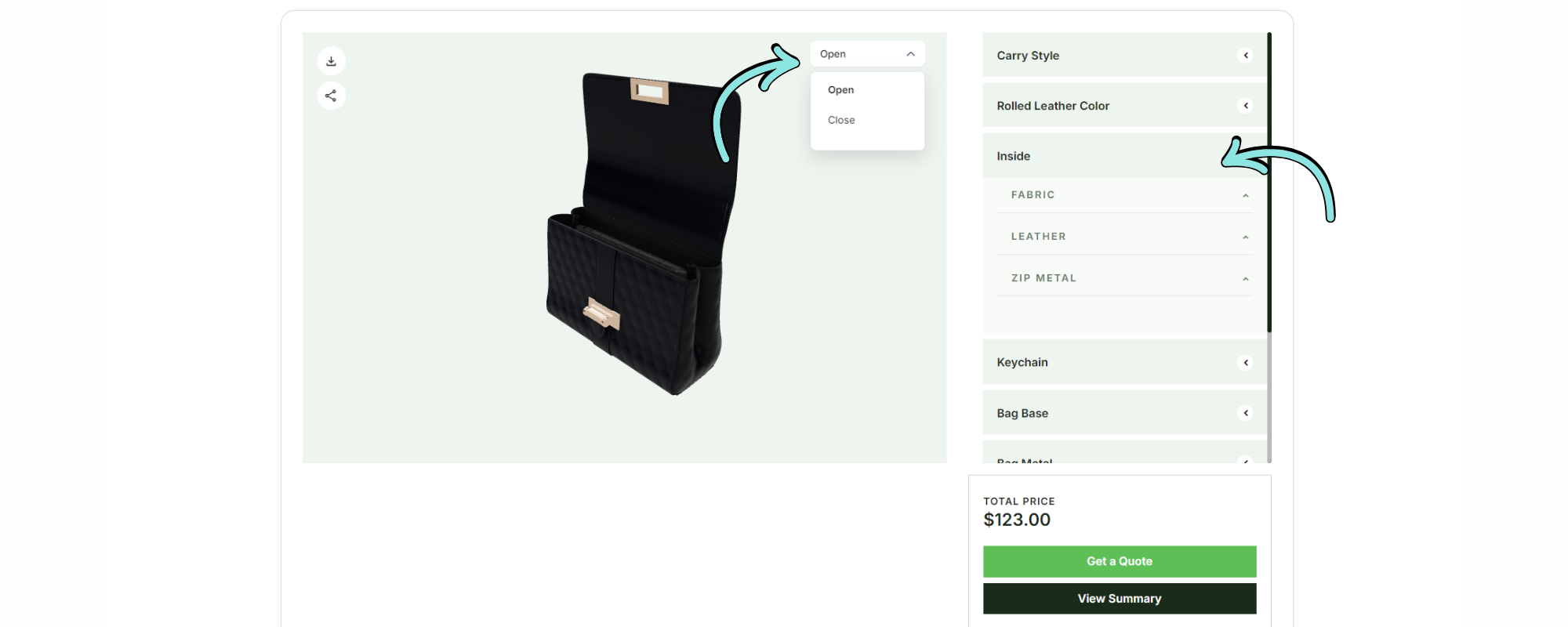
7. The dropdown
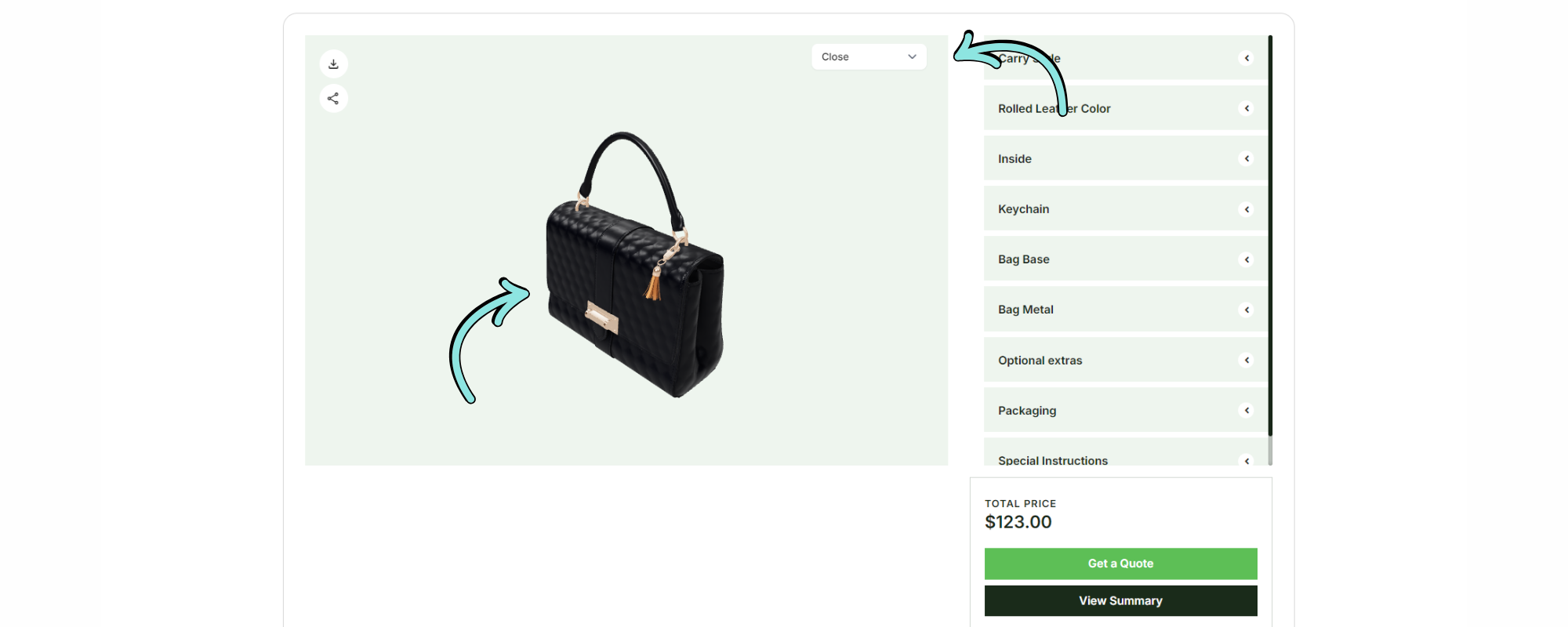
If you have at least one animation, a dropdown appears over the 3D view on its own. Visitors pick a pose from it. If a group animation takes over, the dropdown returns to its placeholder so it never shows a wrong state. It works with the keyboard too. No animations means no dropdown.
Limits and good to know
- Up to 50 animations per configurator, and 200 movements per animation.
- Visitors with “reduce motion” turned on in their device see the pose change instantly, with no animation.
- Swapped-in models animate too, as long as their part and movement names match the original.
- Only the movements built into the model are animated. Bones and animation clips are not.
- Animation changes are not in the editor’s undo history.
Check before publishing
Common problems
| Symptom | Cause |
|---|---|
| “This 3D model has no built-in animations” | The model has no movements built in. Ask your 3D artist, and share the Blender guide. |
| “Waiting for the model to load…” | The model is still loading. Wait, then reopen the panel. |
| Warning on a movement | That part or movement is not in the current model, so it is skipped. Pick it again. |
| Animation stopped working after a new model upload | Part or movement names changed. Pick them again. |
| Group plays nothing | The animation was deleted, or it has no movements (it is a resting pose). |
| Conditional Logic opens a group but nothing moves | Expected. Only visitor clicks start animations. |
| No dropdown on the page | No animations are saved for this configurator. |
| Nothing moves for some visitors | They have reduce motion turned on, so the change is instant. |
| Two movements fight each other | The same part and movement is used twice. Only one is kept. |
Reference screenshots
- Left, the Animations panel: an animation with its movements, Amount and Timing.
- Right, the frontend: the dropdown over the 3D view in two poses.