
A Formula layer works out a number from Range layers and other layers, then either charges it or shows it. It updates live as the customer moves a slider.
Overview
Dynamic Range Pricing combines Range layers (sliders or boxes where customers type a number) with a Formula layer that works out a price from those numbers. The customer never fills in the formula: it updates by itself as they move a slider.
Use it to:
- price by area, such as 45 per square metre of glass or 1 per square inch of skateboard deck;
- price by length, such as trim around the edge of a window;
- add a surcharge only in some cases, such as on oversize openings;
- work out a count, such as how many panes a window needs;
- show a figure without charging for it, such as “Area 1.80 m²” or a lead time.
Formula needs the Pro version and WPConfigurator 3D Product Customizer 1.3.5 or later. The Lite version doesn’t include it.
Quick start: price a skateboard by area
This example charges $1 per square inch of deck: a 7 in × 28 in deck shows Area $196.00 and adds $196.00 to the total.
Step 1. Add the Range layers
- Open your configurator in the editor, on the Model Structure tab.
- Create a group called Dimensions.
- Inside it, add two Range layers: Width and Length.
- Select Width and open its Field Settings:
| Setting | Example | What it does |
|---|---|---|
| Label | Width | Shown above the field. Leave empty to use the layer name. |
| Description | (optional) | Shown under the label to help the customer. |
| Minimum / Maximum / Step | 7 / 21 / 1 | The lowest and highest values, and how far one move of the slider goes. A typed value snaps to the step too. |
| Default Value | 7 | Pre-filled value. It counts towards the total price as soon as the page loads. |
| Input Style | Slider and box | A slider suits a short scale; a box suits a measurement the customer already knows. |
| Unit | in | Shown after the value, such as cm or kg. |
- Repeat for Length with its own scale (for example default 28).
The Preview at the bottom of Field Settings lets you try the control as a customer gets it. Nothing there is saved.
Step 2. Add the Formula layer
- Select the Dimensions group.
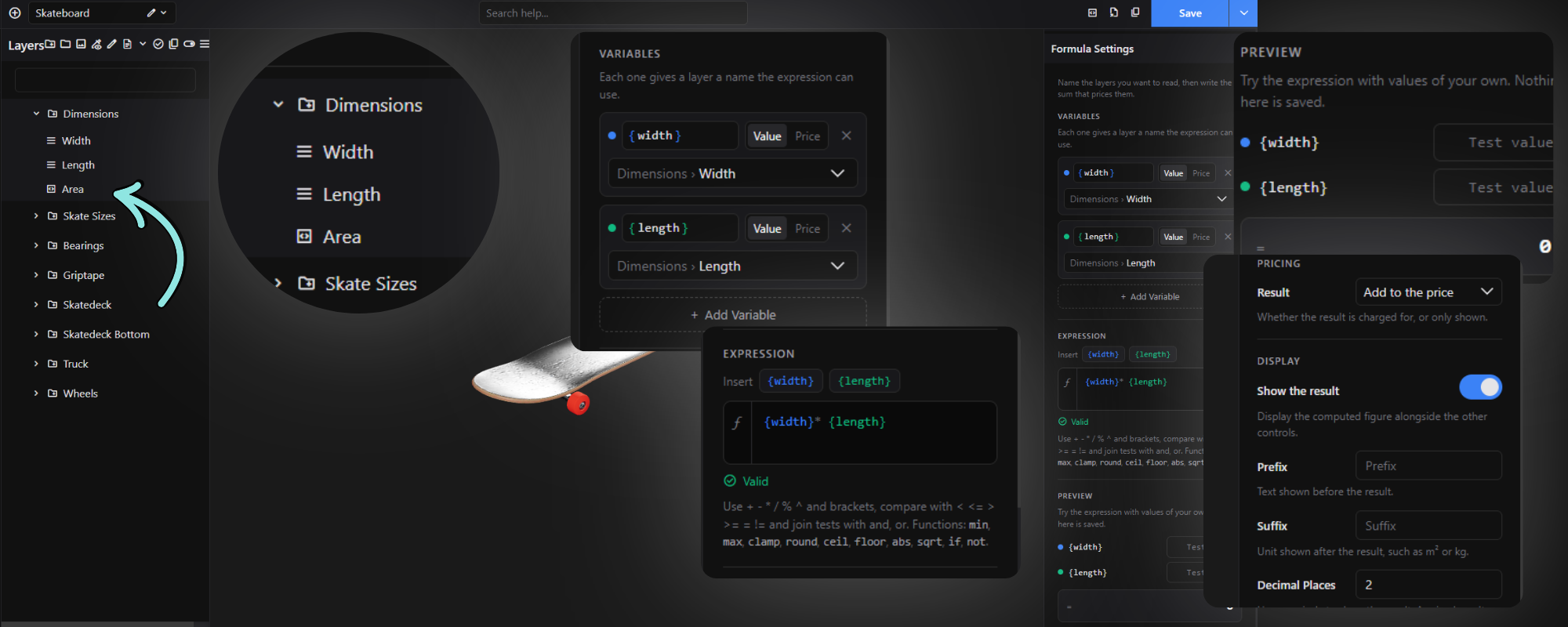
- Click the Formula icon among the add-layer icons. Hover over an icon to see its name.
- A layer called Formula is added. Rename it to Area. The page, summary, cart, emails and PDF list the formula by this name.
- Select Area. Its Formula Settings open in the settings panel.
Step 3. Add variables
- Under Variables, click Add Variable.
- Choose the Layer, for example Dimensions › Width.
- Check the Name. It is filled in from the layer name, so Width becomes
width. - Leave Reads on Value.
- Add a second variable for Dimensions › Length, named
length.
Step 4. Write the expression
In the Expression box, write the sum with each variable in curly braces. You can also click a name under Insert.
{width} * {length}The box colours each variable to match its row and shows Valid when the sum is correct.
Step 5. Preview, then set Pricing and Display
- In Preview, type a test value for each variable, for example 7 and 28. The result shows 196.
- Under Pricing, set Result to Add to the price.
- Under Display, leave Show the result on.
- Click Save.
Open the product page and move the sliders. The Area row and the Total Price change as the customer changes Width or Length.
Variables
A variable gives a layer a short name the expression can use. Each one has a Name, a Layer, and a Reads switch (Value or Price). Remove a variable with its ×.
A name uses letters, digits and underscores, and doesn’t start with a digit.
| Layer | Value | Price |
|---|---|---|
| Range | The number the customer set, on its scale | What the Range costs |
| Option or Color Picker | 1 when chosen, 0 when not | Its price, when chosen |
| Switch | 1 when on, 0 when off | Its price, when on |
| Checkbox | How many boxes are ticked | Its price, with the ticked choices’ prices |
| Select or Radio | The chosen choice’s Value, as a number | Its price, with the chosen choice’s price |
| Text Field or Text Area | The number the text starts with, so “12 mm” reads as 12 | Its price, when filled in |
| Group or Sub Group | How many of its items are chosen | What its chosen items cost together |
| Formula | Its result | Its result when it adds to the price, and 0 when it’s shown only |
- A layer the customer hasn’t chosen reads 0: an option they didn’t pick, a switch that’s off, an empty text field.
- Price is what the layer costs at that moment, with its sale price when that’s lower.
- Give Select and Radio choices numbers as their Values, such as 1, 2 and 3, or a rate such as 45. A choice whose Value is text reads 0.
- Ranges and Formulas are always chosen, so a group’s Value counts them too. To count options, give them a group or sub group of their own.
- Write numbers plainly in text fields. “1,200” reads as 1, because the comma stops it.
Expression
Write the sum in the Expression box and put each variable’s name in curly braces, such as {width}. The box checks the sum as you type and shows Valid, or a list of what to fix.
Arithmetic
| Write | Meaning | Example | Gives |
|---|---|---|---|
+ - | Add, subtract | {width} + 100 | 1300 when width is 1200 |
* / | Multiply, divide | {width} / 1000 | 1.2 when width is 1200 |
% | The remainder after dividing | {qty} % 6 | 2 when qty is 14 |
^ | To the power of | {side} ^ 2 | 9 when side is 3 |
( ) | Work this part out first | ({width} + {height}) * 2 | The perimeter |
Comparisons and logic
A comparison gives 1 when it’s true and 0 when it isn’t. Any number except 0 counts as true.
| Write | Meaning |
|---|---|
< <= | Less than, less than or equal to |
> >= | Greater than, greater than or equal to |
= != | Equal to, not equal to. == and <> work too. |
and | Both are true |
or | At least one is true |
not(x) | 1 when x is 0, and 0 otherwise |
Functions
| Function | What it gives | Example |
|---|---|---|
if(test, a, b) | a when the test is true, b when it isn’t | if({width} <= 1000, 20, 35) gives 20 at 900 |
min(a, b, …) | The smallest | min({qty}, 10) gives 10 when qty is 12 |
max(a, b, …) | The largest | max({price}, 60) gives 60 when price is 45 |
clamp(x, low, high) | x, kept between low and high | clamp({x}, 10, 20) gives 20 when x is 25 |
round(x) | x to the nearest whole number | round(2.5) gives 3 |
round(x, places) | x to that many decimal places | round({area}, 2) |
ceil(x) | x rounded up | ceil({width} / 1000) gives 3 when width is 2350 |
floor(x) | x rounded down | floor(7.9) gives 7 |
abs(x) | x without its minus sign | abs({a} - {b}) |
sqrt(x) | The square root of x | sqrt({area}) |
round() takes halves away from zero: round(2.5) is 3 and round(-2.5) is −3.
Order of operations
- Brackets and functions.
^, from right to left, so2 ^ 3 ^ 2is2 ^ 9.- A minus sign in front of a number, so
-2 ^ 2is −4 (write(-2) ^ 2for 4). *,/and%.+and-.- Comparisons.
and.or.
Operations of the same rank go from left to right. Use brackets whenever you’re unsure.
Rules
- Lowercase only.
if,and,or,not,minand so on.IFandANDaren’t recognised. - Names exactly as written in Variables, with nothing else between the braces:
{width}, not{ width }. - Numbers use a point for decimals, with a digit before it:
0.5, not.5or0,5. Leave out thousands separators, currency signs and units. - One comparison at a time. Write
{w} > 100 and {w} < 200, not100 < {w} < 200. - Spaces and line breaks are fine between the parts.
- Up to 500 characters, and up to 10 levels of brackets and functions inside each other.
- Only these characters are kept: the letters A to Z without accents, digits, spaces and
_ { } . , ( ) + - * / % ^ < > = !. Anything else is saved as?, which the editor flags as an error.
Sums that can’t go wrong
A formula never stops the page or the checkout. Instead, dividing by 0 gives 0, the square root of a negative number gives 0, a name with no variable gives 0, an expression with an error gives 0, and formulas that read each other in a loop all give 0. The editor flags errors and unknown names, but it can’t spot the cases that depend on the customer’s values.
Preview, Pricing and Display
Preview
Preview appears once the formula has a variable. Type a test value for each variable to see what the expression gives. Nothing here is saved, and customers never see it. The Preview shows the exact result. A charged result is rounded to your store’s decimal places, so a Preview of 18.900000000000002 is charged as 18.90.
Pricing
| Result | What happens |
|---|---|
| Add to the price | The default. The result is this layer’s price and is added to the total, rounded to your store’s decimal places. A result below 0 is charged as 0: a formula can’t give a discount. |
| Show only | The result is shown but never charged. Use it for a figure the customer should see, such as an area, a weight or a lead time, or for a step another formula reads. |
Display
| Setting | What it does |
|---|---|
| Show the result | On by default. Turn it off to show no row for this formula on the page. The formula still works, and a charged result is still charged. |
| Prefix | Text shown before a Show only result, such as Approx. |
| Suffix | Text shown after a Show only result, such as m², kg or days. |
| Decimal Places | How many decimal places a Show only result shows, from 0 to 10. The default is 2. |
A charged result always shows as money in your store’s currency, so Prefix, Suffix and Decimal Places only change Show only results.
What customers see
A Formula is a row in its group, titled with the layer’s name. The row can’t be clicked or changed. With Show the result off, there’s no row at all.
- Add to the price: the name and the price, such as “Area $196.00”. The price changes as the customer changes the layers the formula reads. A price of 0 isn’t shown.
- Show only: the name and the result, with its prefix and suffix, such as “Opening area 1.80 m²”.
| Where | Add to the price | Show only |
|---|---|---|
| Summary popup | Listed with its price | Listed with “Result: 1.80 m²”. With Show the result off, listed by name only. |
| Cart, checkout, orders, emails, the PDF and the invoice | “Glass ($81.00)” | “Opening area (1.80 m²)”, even with Show the result off |
When the customer adds to cart or asks for a quote, your store works every formula out again from their choices. What they pay is always the configurator’s figure, and editing the page can’t change it.
Examples
The window examples assume Width and Height Ranges in millimetres. Unless an example says otherwise, set Result to Add to the price.
Common pricing patterns
| What it does | Expression | Variables | Gives |
|---|---|---|---|
| 45 per square metre | {width} * {height} / 1000000 * 45 | Width and Height Values | 81.00 at 1200 × 1500 mm |
| Trim around the edge at 3.50 a metre, only when the Edge trim option is chosen | {trim} * 2 * ({width} + {height}) / 1000 * 3.5 | {trim} is the Edge trim option’s Value | 18.90 when chosen, 0 when not |
| One pane per 1.2 m², rounded up | ceil({width} * {height} / 1200000) | Width and Height | 2 at 1200 × 1500 mm |
| Fitting at 25 a pane | ceil({width} * {height} / 1200000) * 25 | Width and Height | 50 at 1200 × 1500 mm |
| 15% of the frame’s price | {frame} * 0.15 | {frame} is the Frame group’s Price | 36 when the frame costs 240 |
| 45 per m², never less than 60 | max({width} * {height} / 1000000 * 45, 60) | Width and Height | 60 at 1000 × 1000 mm |
| The first 10 free, then 2 each | max(0, {qty} - 10) * 2 | {qty} is the Quantity Range’s Value | 10 for 15 units |
| 12 per started metre | ceil({length} / 1000) * 12 | {length} is the Length Range’s Value | 36 at 2350 mm |
Price bands
Handling costs 20 up to 1000 mm wide and 35 above that:
if({width} <= 1000, 20, 35)For three or more bands, put another if() in the “false” part. This gives 20 up to 1000 mm, 35 up to 2000 mm, and 50 above that:
if({width} <= 1000, 20, if({width} <= 2000, 35, 50))Always give if() all three parts: the test, the result when true, and the result when false.
Volume pricing
Each unit costs 10, or 8 once the customer orders 10 or more. This gives 90 for 9 units and 96 for 12 units:
if({qty} >= 10, {qty} * 8, {qty} * 10)Surcharges
An oversize surcharge applies only when the opening is wider than 2400 mm and taller than 1800 mm:
if({width} > 2400 and {height} > 1800, 60, 0)To also apply it to any opening of 8 m² or more, use brackets when you mix and and or:
if(({width} > 2400 and {height} > 1800) or {area} >= 8, 60, 0)A comparison gives 1 or 0, so it can switch a charge on by itself. This adds 5 once the customer orders 10 or more:
({qty} >= 10) * 5Depending on a choice
Give the Glass select’s choices the Values 1 (Single), 2 (Double) and 3 (Triple). Triple glazing then adds 20 per m², which is 36 on 1.8 m² and 0 for the other choices:
if({glass} = 3, {area} * 20, 0)Standard delivery costs 10 unless the customer picks the Express delivery option:
if(not({express}), 10, 0)Show a figure without charging for it
A lead time: set Result to Show only, Suffix to days and Decimal Places to 0. This shows “14 days” at 3010 mm and “7 days” at 2000 mm:
if({width} > 2400, 14, 7)Formulas that read other formulas
Splitting a sum in two makes it easier to read and lets the customer see the middle step.
- Opening area, set to Show only, with Suffix
m²and 2 Decimal Places. Its variables{width}and{height}read the Width and Height Values.
{width} * {height} / 1000000- Glass, set to Add to the price. Its variable
{area}reads the Opening area formula’s Value.
{area} * 45At 1200 × 1500 mm the customer sees “Opening area 1.80 m²” and “Glass $81.00”. Don’t let formulas read each other in a loop, where A reads B and B reads A: every formula in the loop gives 0.
Conditional Logic, good to know and troubleshooting
Use a Formula in Conditional Logic
With the Conditional Logic module on, a rule can test a formula:
- Formula result compares the formula’s result, using
=,≠,>,<,≥or≤. - Layer price compares what a charged formula costs.
IF
Size › Opening area ≥ 4.5

THEN
Disable Backrest Frame
A formula can also be the target of a rule: Show, Hide, Enable or Disable. A formula is always selected, so Select and Deselect do nothing to it, and the editor warns you if you try. Hiding a charged formula doesn’t stop the charge. To charge only in some cases, use if() in the expression.
Good to know
- A formula is always on. The customer can’t switch it off. To make a charge optional, multiply it by an option or a switch, which reads 0 until it’s chosen, or use
if(). =must match exactly. A computer can’t hold some decimals exactly, so0.1 + 0.2 = 0.3is false. Round first:round({price}, 2) = 49.99.- Work in whole units before rounding up or down.
ceil({area} / 1.2)gives 8 for an area of 8.4, where you’d expect 7. Working from millimetres avoids it:ceil({width} * {height} / 1200000)gives 7 at 4000 × 2100 mm. - A formula can’t give a discount. A charged result below 0 is charged as 0. A Show only result can be negative.
- Formulas travel with the page, like every layer’s settings, so a customer can read them in the page source. Don’t put anything private in them.
- Default values count. A Range’s Default Value counts towards the total price as soon as the page loads.
- Duplicating. A copy of a formula reads the same layers as the original. After duplicating a group, save the configurator and reload the editor before you change the copy. Then point the copy’s variables at the copied layers.
- Turning off the Formula module stops every formula from showing and charging. Turn it back on before you save a configurator that has formulas: saving while it’s off can damage expressions that use
<or>, or a%directly followed by a number.
Messages in the editor
| Message | What to do |
|---|---|
| Valid | Nothing. The formula is ready. |
| No variable is called “width”. | Add a variable with that name under Variables, or fix the spelling. |
| “width” is never used in the expression. | Use the variable in the expression, or remove it. |
| “width” is named twice. | Give one of the two variables another name. |
| “width” does not point at a layer. | Choose a Layer for the variable. |
| “width” points at a layer that no longer exists. | Choose another layer, or remove the variable. |
| A formula cannot read itself. | Choose a different layer for the variable. |
| “my-width” is not a usable name | Rename it, for example to my_width. |
| There is no function called “IF”. | Write functions in lowercase: if, and, or, not. |
| “if” takes 3 argument(s), not 2. | Add the missing part, such as the result for when the test is false. |
| Comparisons cannot be chained; join them with “and”. | Write {w} > 100 and {w} < 200. |
| A bracket is never closed. | Add the missing ). |
| A variable is missing its closing brace. | Add the missing }. |
| ” width ” is not a valid variable name. | Remove the spaces inside the braces. |
| “.” cannot be used here. | Put a digit before the point: 0.5. The same message names any other character the expression can’t use. |
| Unexpected “,”. | A comma only separates a function’s parts. Remove thousands separators from numbers. |
| The expression ends too early. | Finish the sum: something is missing after the last operator. |
| Longer than the 500 character limit. | Shorten it, or split it into two formulas. |
| Nested too deeply — the limit is 10. | Use fewer brackets and functions inside each other, or split it into two formulas. |
Troubleshooting
| What you see | Why, and what to do |
|---|---|
| There’s no Formula icon in the editor. | Turn on the Formula module. Formula needs the Pro version. |
| The result is 0. | Check that the editor says Valid. A variable reads 0 when its layer isn’t chosen, dividing by 0 gives 0, and formulas in a loop give 0. |
| A select’s choice reads 0. | Give the choices numbers as their Values. |
| The price doesn’t show on the page. | The result is 0, the formula is set to Show only, or Show the result is off. |
| The total is a cent off what you worked out. | A charged result is rounded to your store’s decimal places, halves up. Round inside the formula if you need another rule: ceil({x} * 100) / 100 always rounds up to the cent. |
| Hiding the formula with Conditional Logic doesn’t remove its charge. | Hidden layers still count. Use if() in the expression instead. |