
A Range layer lets the customer choose a number, such as a width, a length or a quantity, on a slider, in a box, or both. Other layers read that number, most often a Formula layer that prices it.
Add a Range layer
- Turn on Custom Fields under 3D Configurators → Modules and click Save.
- Open your configurator in the editor, on the Model Structure tab.
- In the layer list, select the group the Range belongs in, for example Dimensions.
- Click the Range icon among the add-layer icons. Hover over an icon to see its name.
- Rename the layer, for example to Width.
- Select the layer. Its Field Settings open in the settings panel.
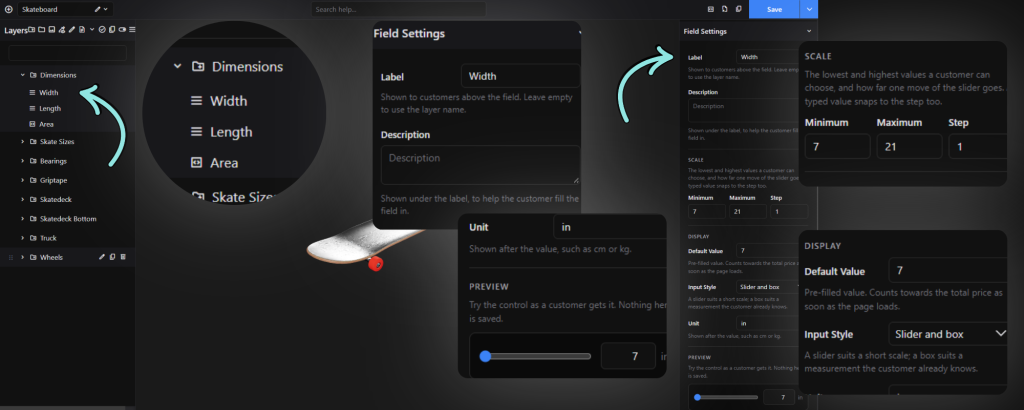
Field Settings
| Setting | Example | What it does |
|---|---|---|
| Label | Width | Shown to customers above the field. Leave empty to use the layer name. |
| Description | (optional) | Shown under the label, to help the customer fill the field in. |
| Minimum | 7 | The lowest value a customer can choose. |
| Maximum | 21 | The highest value a customer can choose. |
| Step | 1 | How far one move of the slider goes. A typed value snaps to the step too. |
| Default Value | 7 | Pre-filled value. It counts towards the total price as soon as the page loads. |
| Input Style | Slider and box | A slider suits a short scale. A box suits a measurement the customer already knows. |
| Unit | in | Shown after the value, such as cm or kg. |
At the bottom of Field Settings, Preview lets you try the control as a customer gets it. Nothing there is saved.
What the customer sees
The Range appears in its group with its label, a slider and a number box, and the unit after the value. In the skateboard example, Width runs from 7 to 21 in and Length is set to 28 in. A Formula row such as Area $196.00 sits beneath them and changes as the customer moves either slider.
Using a Range in a Formula
A Formula layer reads a Range through a variable. Choose what the variable Reads:
| Reads | What you get |
|---|---|
| Value | The number the customer set, on the Range’s scale. A Width of 7 reads as 7. |
| Price | What the Range costs. |
A Range is always chosen, so it never reads 0 because it was skipped. Set the scale in the units you want to calculate with: a Width in millimetres reads as millimetres, so divide by 1,000,000 to get square metres.
Open items
Range pricing options, such as Price Tiers, aren’t covered yet because the Range details weren’t in the material provided. Send them and this tab will be completed.