A Group layer defines a section of your configurator, connects it to meshes in your 3D model, and controls how its options are presented to the customer.
To create a Group layer:
- Click the + button in the Layers panel, or press G.
Group layer settings (right panel):
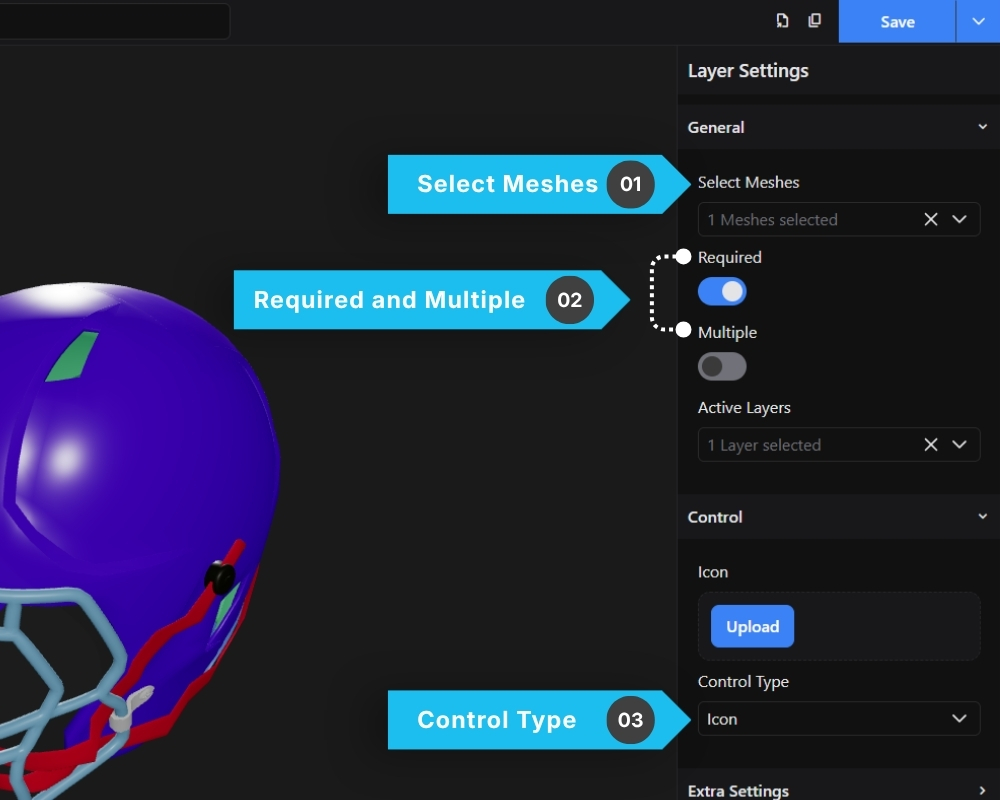
1. Select Meshes
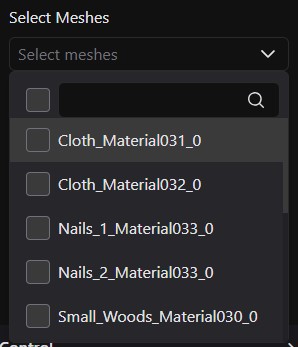
Choose which meshes from your GLB model this group controls. Meshes are listed by their name as defined in the 3D file. This is how the configurator knows which part of the model to update when an option is selected.
2. Required
When enabled, the customer must make a selection in this group before they can proceed.
Multiple
When enabled, the customer can select more than one option within this group at the same time.
3. Control Type
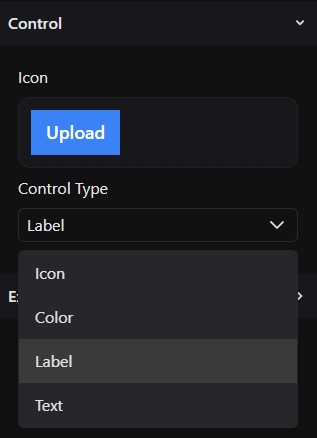
Defines how options within this group are presented to the customer. The control type you set here determines what input appears in the Option layers below.
Label  - Options shown as text labels
Icon   - Options shown as uploaded images
Color  - Options shown as color swatches;
          a color picker appears in each Option layer
Text   - Options shown as text values