
Audience: shop owners creating inspirations in the configurator editor.
Not for: developers styling, overriding or extending the gallery (see inspiration-gallery-developer-guide).
Applies to: plugin v1.4.0
Last updated: 2026-11-19
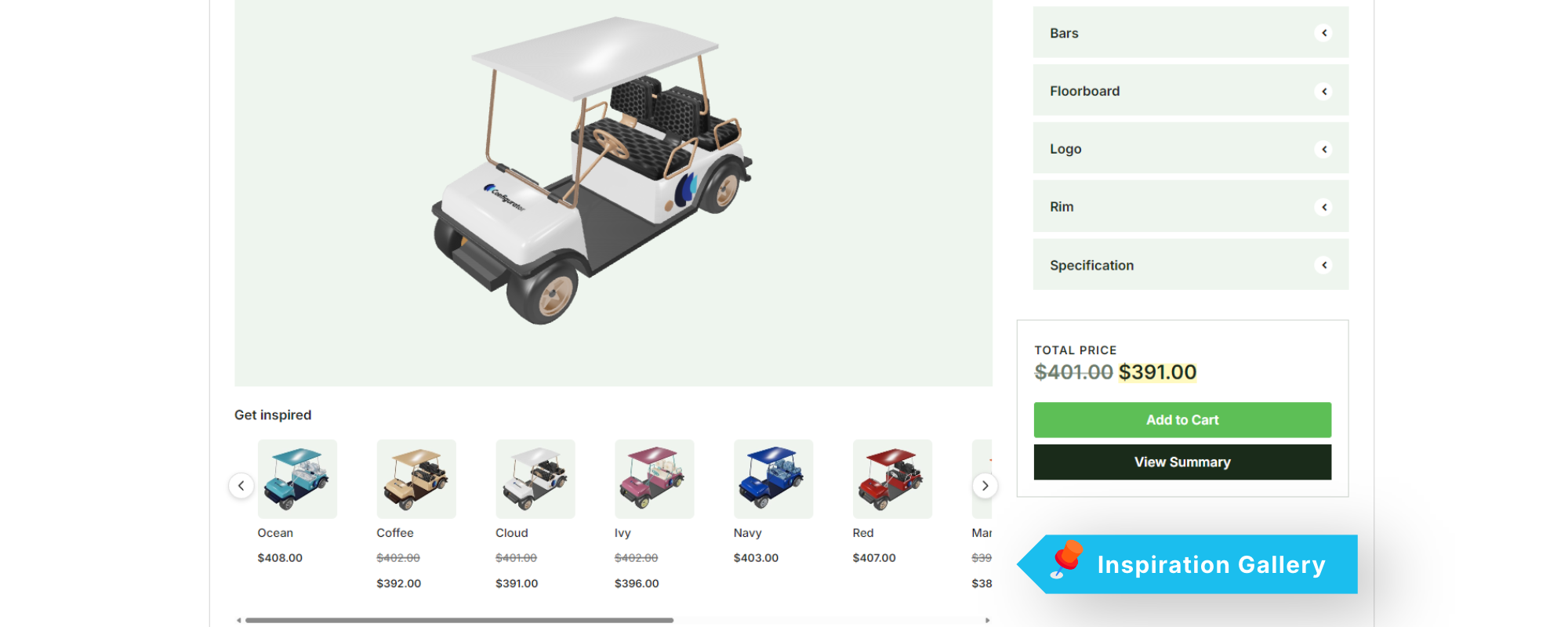
The Inspiration Gallery gives a configurator a set of ready-made looks. Each inspiration has a name, a thumbnail and a choice of options. They show as a row of thumbnails under the 3D model, and your customers apply a look with one click, then change it further or undo it.
Pro only. The Inspiration Gallery is not in the Lite version.
Using it
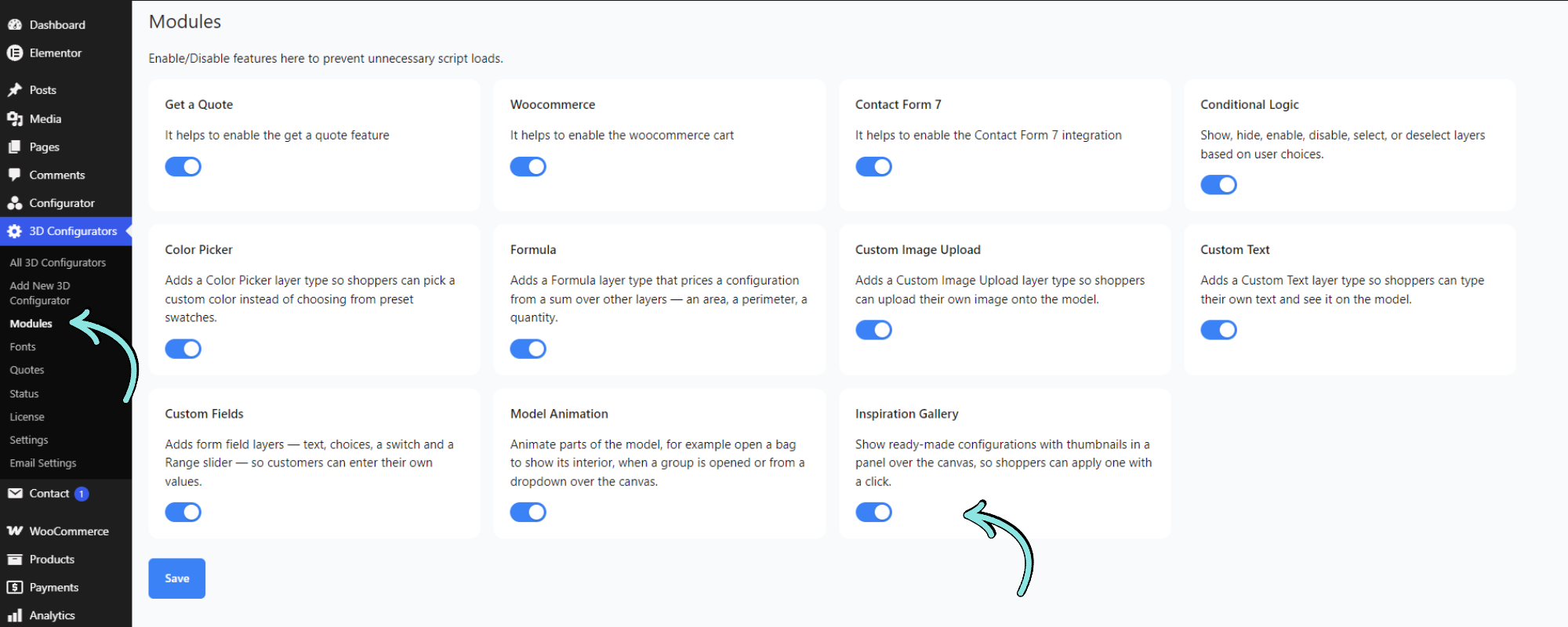
1. Enable Inspiration Gallery on wp3dconf → Modules.
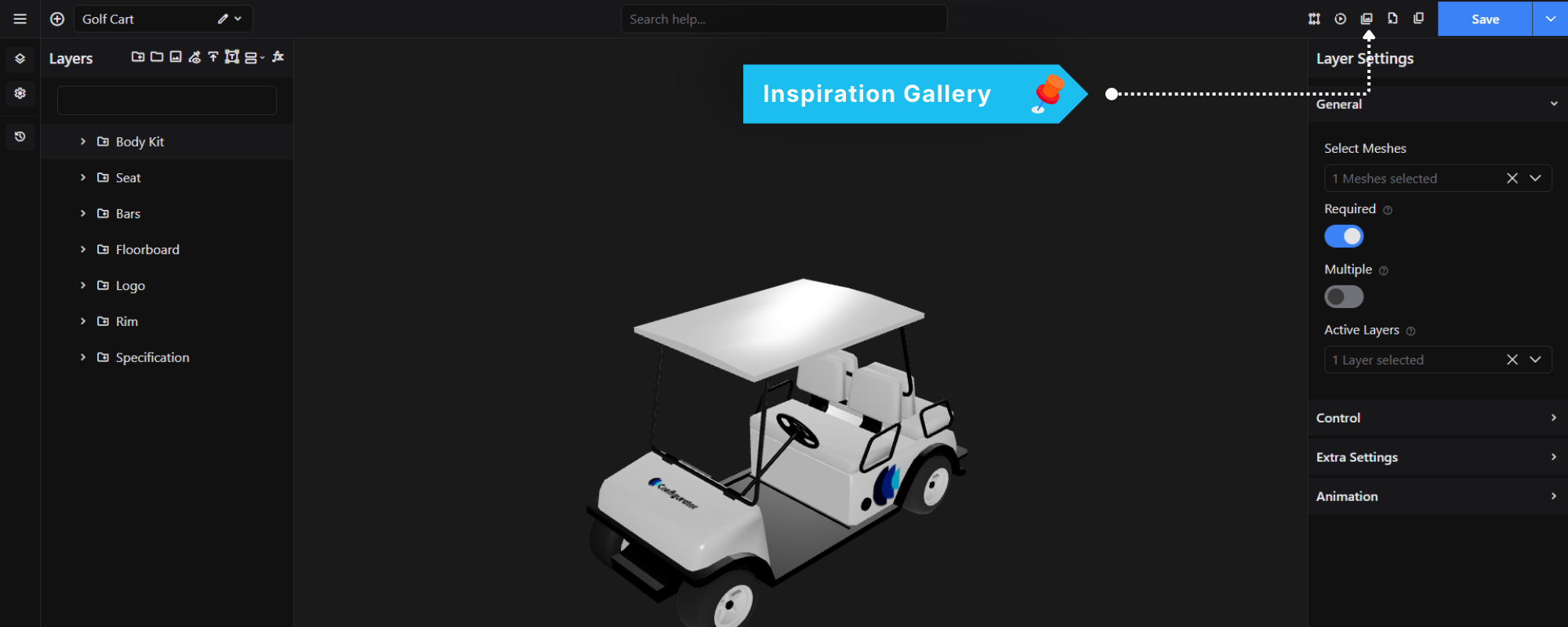
2. Open a configurator in the editor and click the Inspirations (photo library) icon in the toolbar. A dialog opens.
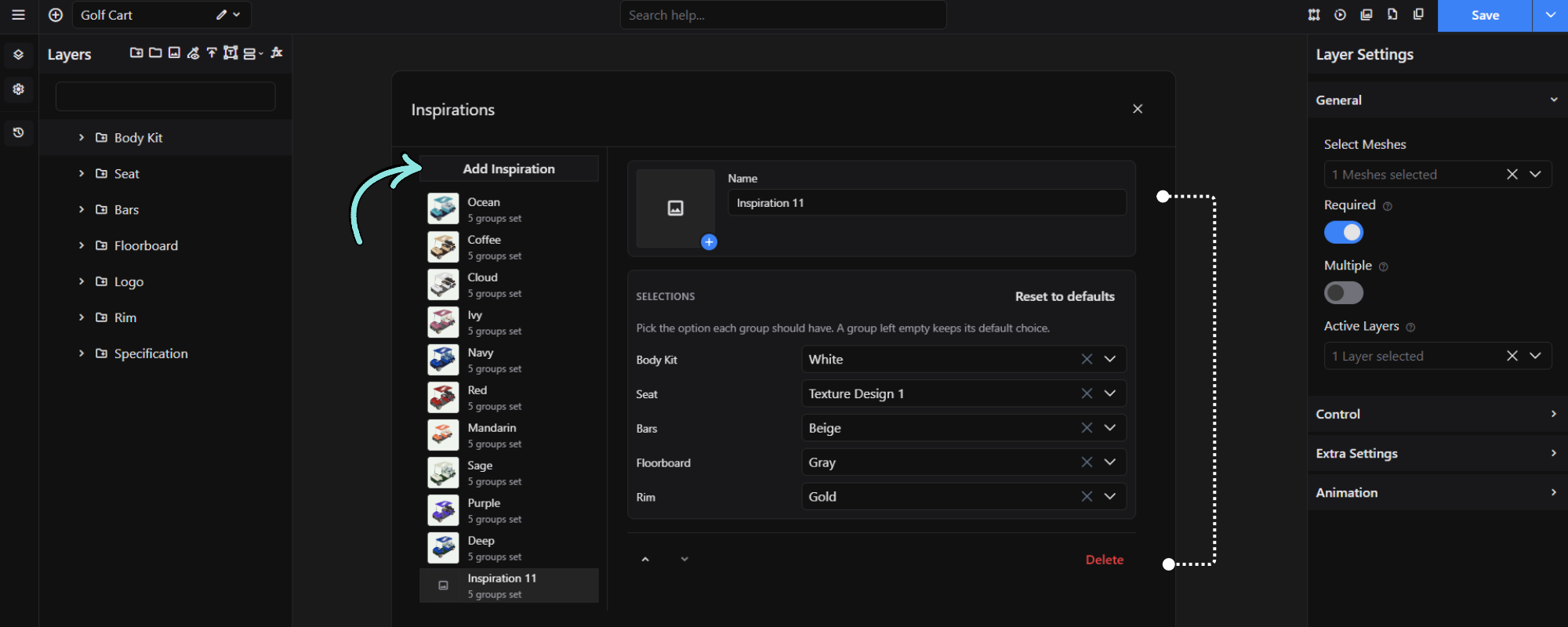
3. Click Add Inspiration. The new inspiration starts with the configurator’s default choices.
4. For each inspiration:
- Name — shown under the thumbnail on the frontend.
- Thumbnail — click the thumbnail (it has a + on its corner) to pick an image from the Media Library; Remove under it clears it. To get a picture of the model, configure the look on the product page, use the toolbar’s Download button and upload that image.
- Selections — one row per group (sub groups show their path, such as Body › Colour). Pick the option the group should have; a group that allows several choices takes several. A group left empty keeps its default choice. Reset to defaults sets every row back.
- Arrows reorder inspirations; Delete removes the selected one.
5. Click Save, or use the editor’s normal Save or autosave. The inspirations go with the same save request.
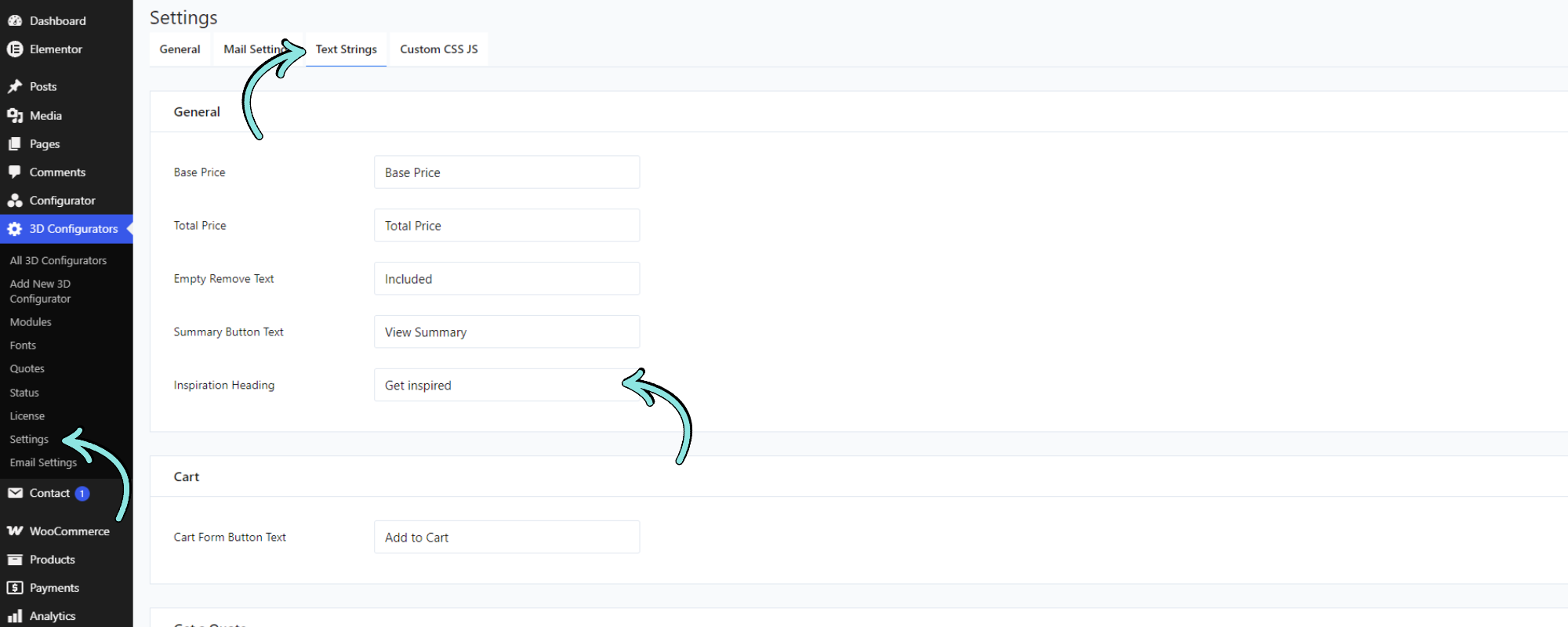
The heading above the thumbnails is set once for the site, under wp3dconf → Settings → Text Strings → Inspiration Heading, for example High selling configurations. It defaults to Get inspired.
To hide the gallery on one page, add show_inspiration="false" to the shortcode, for example [wp3dconf id="12" show_inspiration="false"], or switch off Show inspiration gallery in the block or page builder settings. See embed-configurator.
Up to 50 inspirations per configurator.
If you delete an option in the editor, it is removed from every inspiration that used it. Inspirations come along when you export, import or duplicate a configurator, or create one from a template, thumbnails included.
What your customers see
- The gallery sits directly under the 3D model, in every skin: the heading, then a row of thumbnail cards. It shows only when the configurator has inspirations and the page has not hidden it, and only once the configurator has finished loading.
- The row scrolls sideways when the cards do not fit. On devices with a mouse, round ‹ › arrows at the ends scroll it and show only while there is more on that side; touch screens swipe and show no arrows.
- Each card shows the inspiration’s thumbnail, name and total price, in the shop’s currency, with the regular price struck through when it is on sale. The price is what the look would cost once applied, and it updates whenever the configurator’s price changes.
- Clicking a card applies that look straight away and outlines the card. “Name applied” with an Undo link appears next to the heading.
- Undo goes back to what the customer had before their first inspiration, even after trying several.
- As soon as the customer picks an option themselves, the outline and Undo go away, so Undo never throws away their own changes.
What applying a look does
Applying a look changes the options the same way the customer’s own clicks would:
- Prices and the 3D model update as for a click, and Conditional Logic rules run as usual.
- A group the inspiration does not list gets its default choice. A listed group gets exactly the listed options that still exist; a single-choice group keeps only one; a required group that would end up empty falls back to its default.
- Model Animation does not play, because animations only follow a customer’s own clicks.
Limitations
- Inspirations cannot set a Custom Text layer’s text or a Custom Image Upload image, and only regular options are listed in the editor. Those layers follow their group’s default: one that is on by default stays on with the customer’s own text or image, and one that is not is switched off.
- The thumbnail is uploaded by hand; the editor cannot capture one from the 3D view yet.
- A card’s price does not run Conditional Logic, so if a rule would change an option once the look is applied, the card shows the price of the options as listed.