
IF Section
The IF section defines when a condition should be triggered.
It consists of several configurable fields.
1. Condition Type
Choose what the rule should evaluate.
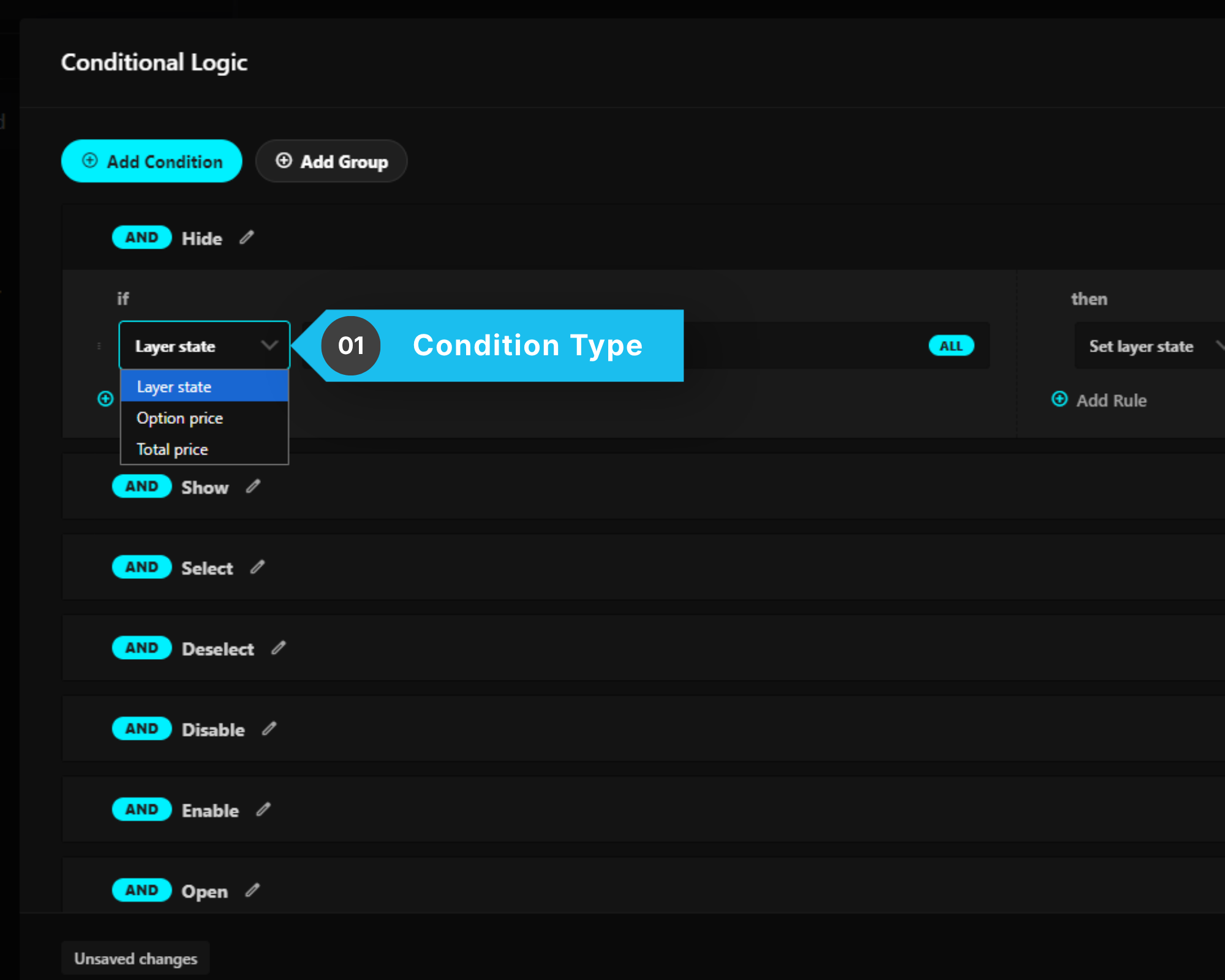
Available options include:
A. Layer State
Checks the state of one or more layers.
Example:
IF
Blue is Selected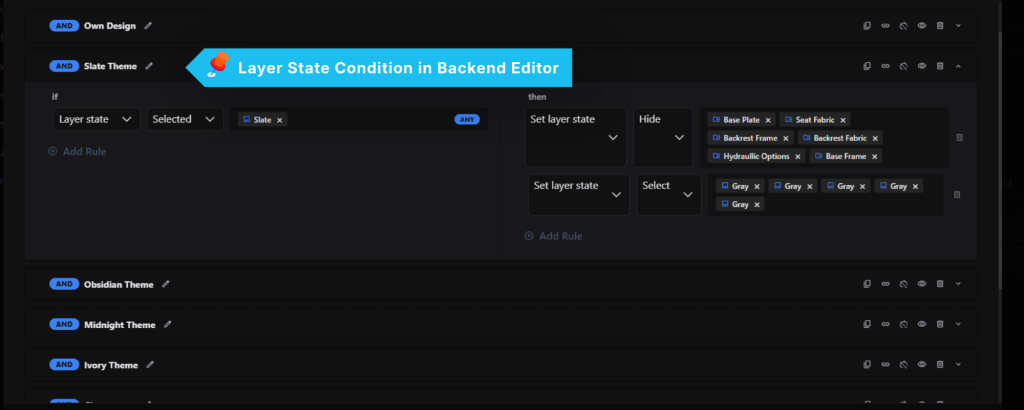

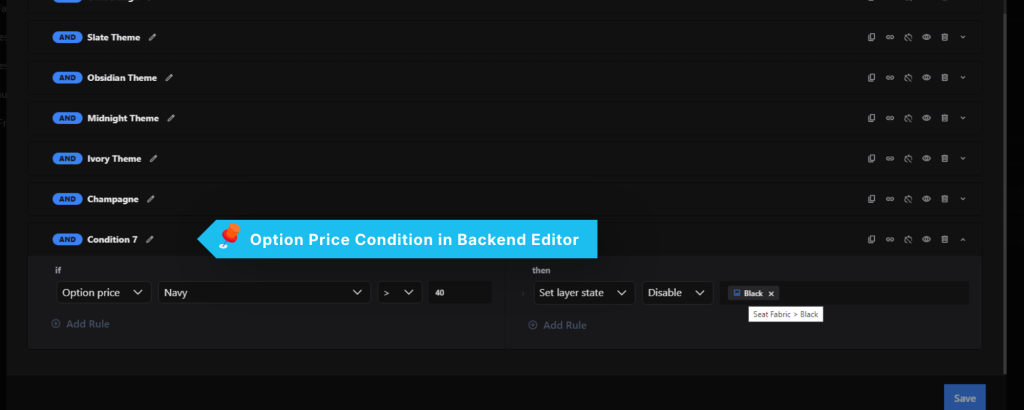
B. Option Price
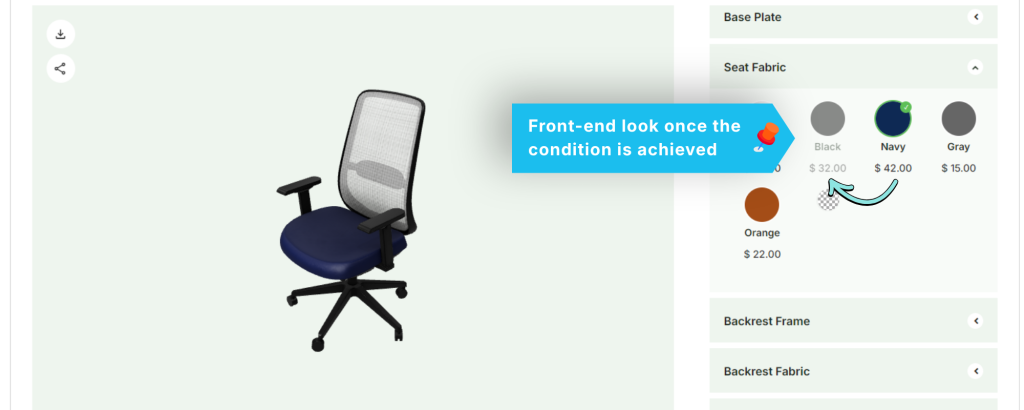
Compares the price of one specific option that you choose from the layer list.
The condition is only true while that option is selected. An option that isn’t selected adds nothing to the configuration, so the rule will not fire — regardless of the option’s price.
If the option has a sale price set, the sale price is used for the comparison. Otherwise the regular price is used.
Option Price works with option layers only. If you choose a group, the editor will warn you: “Option price only applies to an option, not a group.”
Useful for premium upgrades and pricing thresholds.
Example:
IF "Carbon Wheels" Option Price > 100
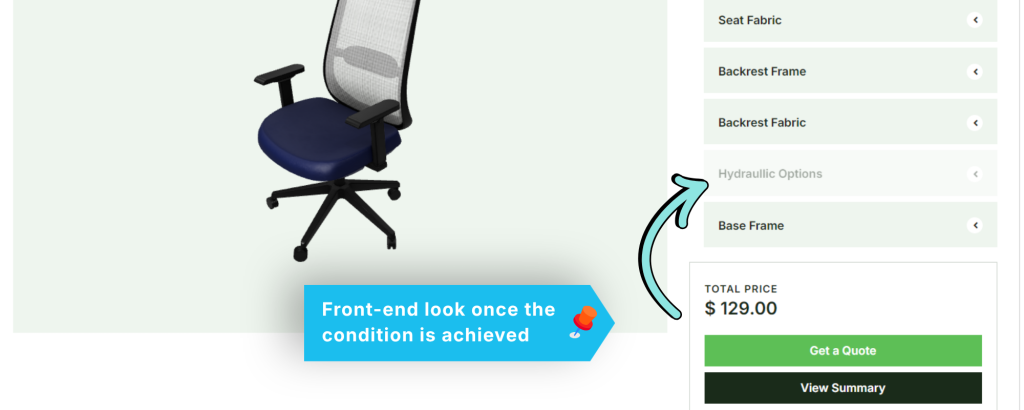
C. Total Price
Evaluates the total configurator price.
Useful for discounts, promotions, or premium package logic.
Example:
IF
Total Price >= 1000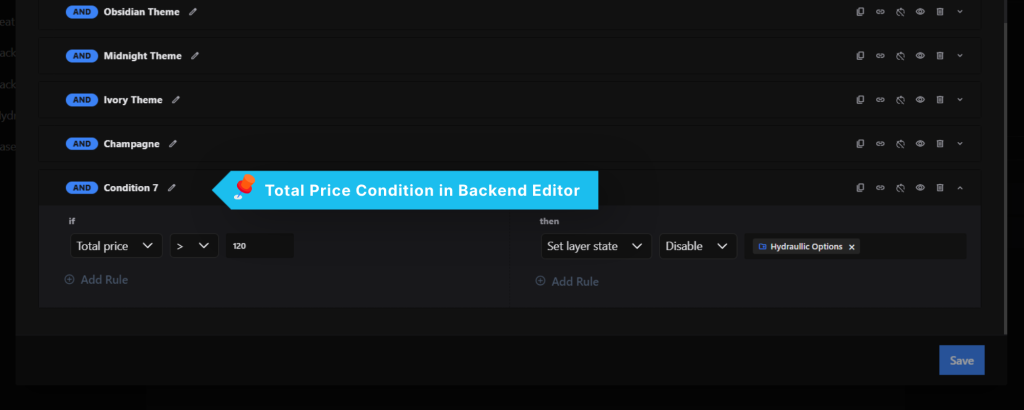
2. Multiple IF Rules
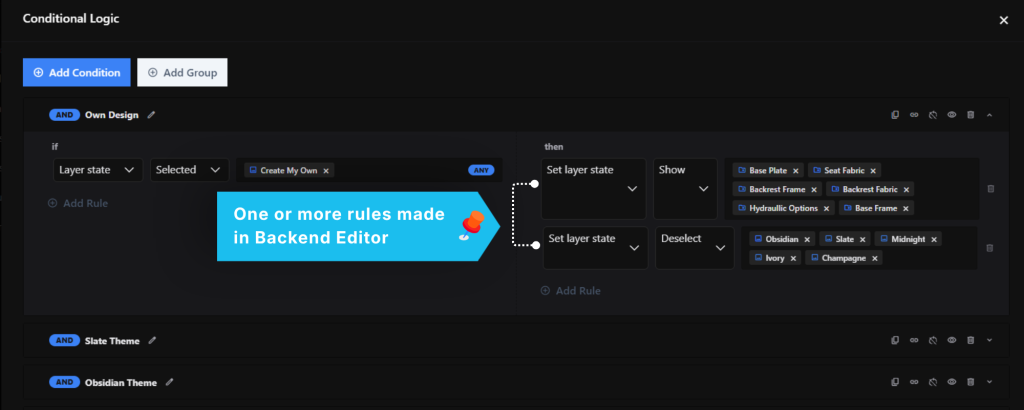
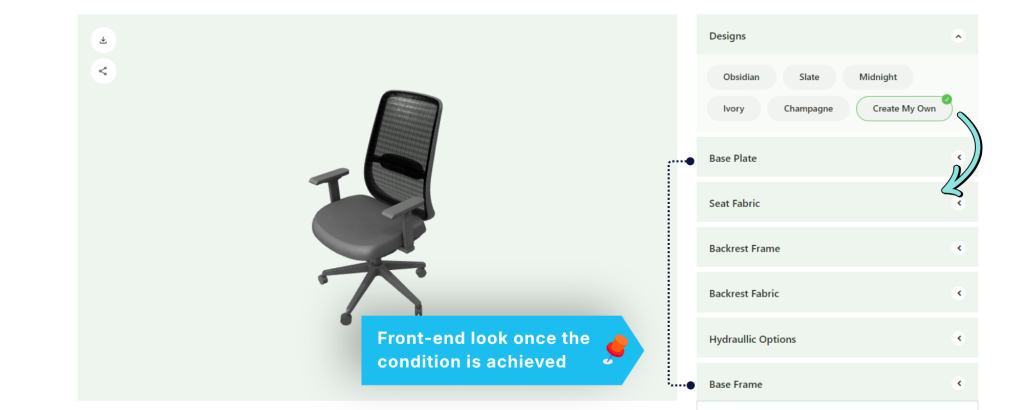
A condition can contain more than one IF rule. Use the Add Rule button under either IF or THEN to add another.
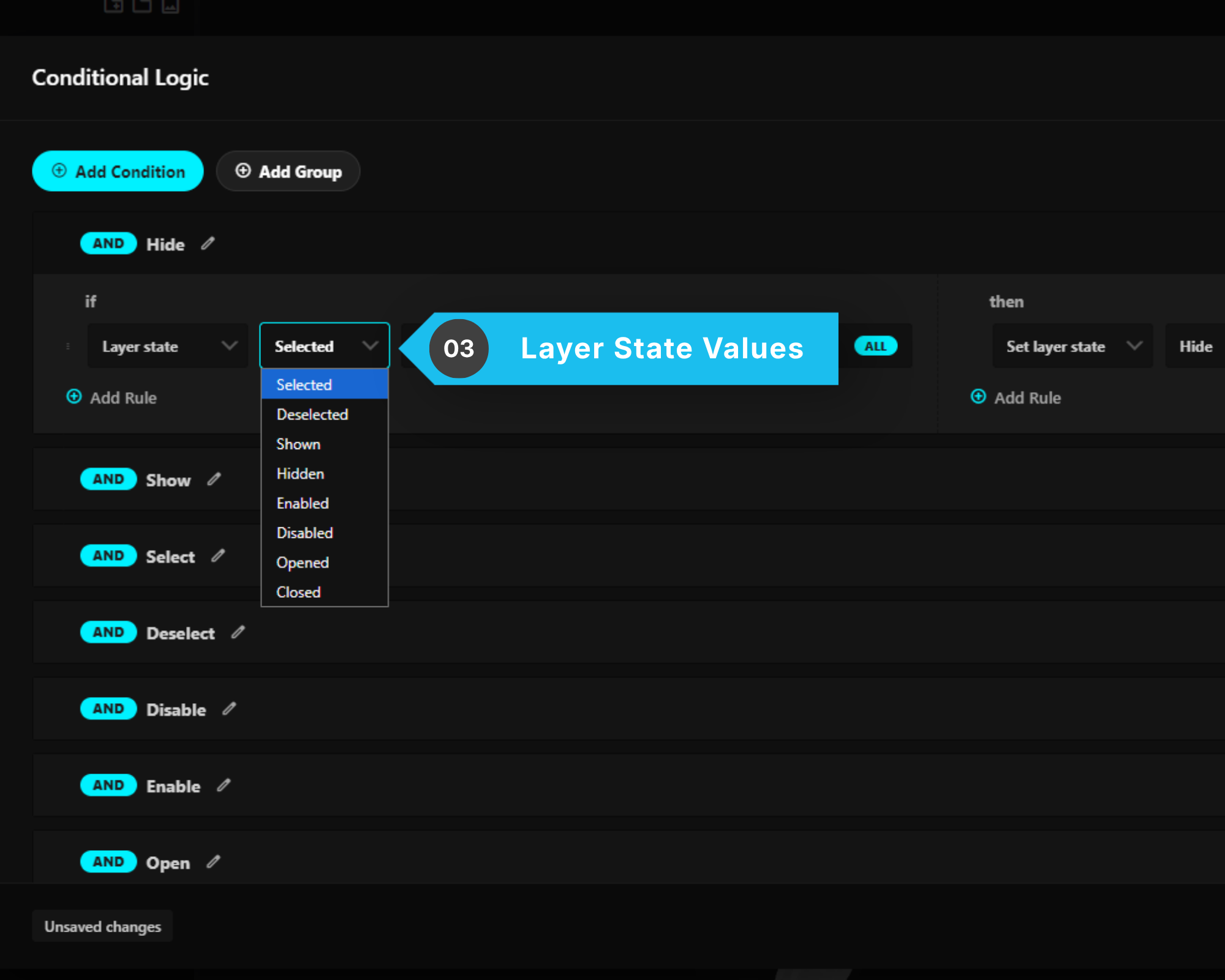
3. Layer State Values
When using Layer State, you can choose from several states.
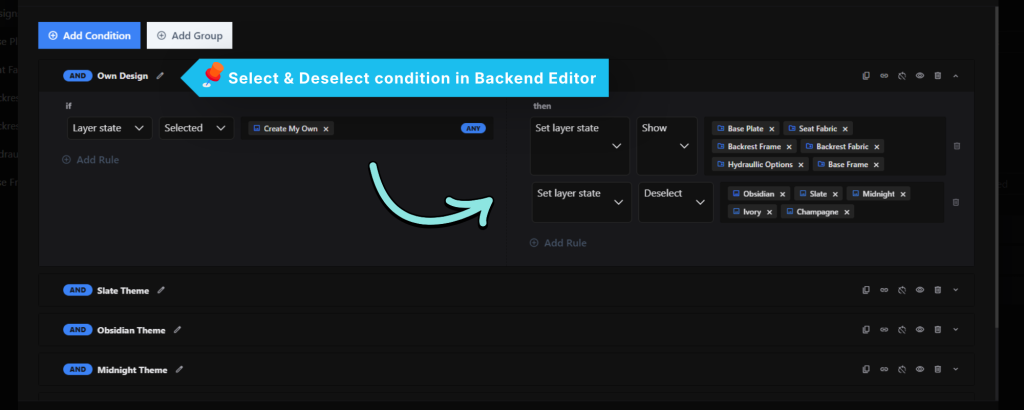
A. Selected
Triggers when the specified layer is selected.
Example:
IF
Blue is Selected
B. Deselected
Triggers when the specified layer is not selected.
C. Shown
Triggers when the layer is currently visible.
D. Hidden
Triggers when the layer is hidden.
E. Enabled
Triggers when the layer is enabled and available for interaction.
F. Disabled
Triggers when the layer is disabled.
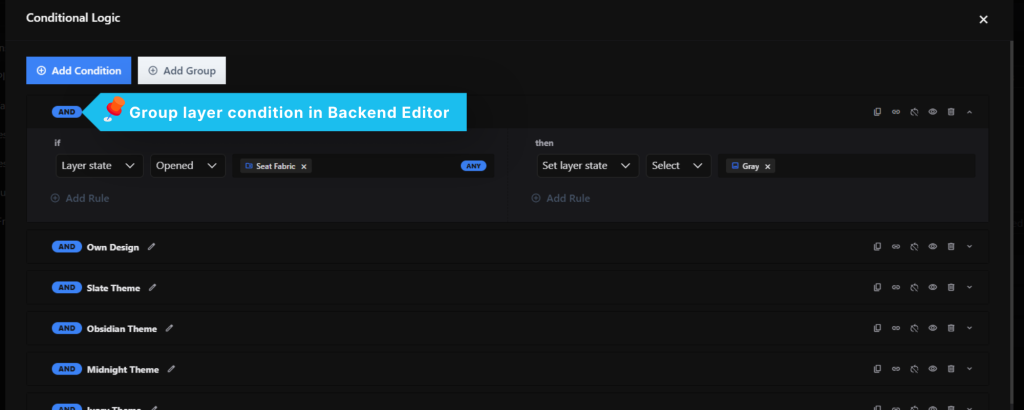
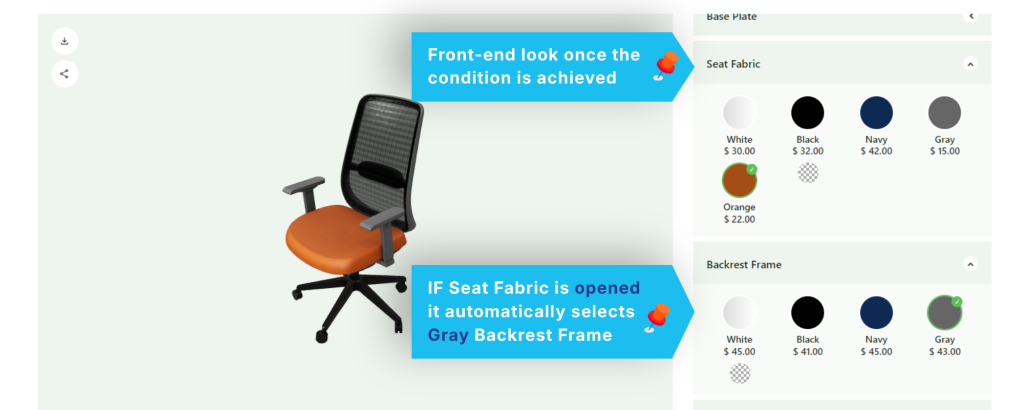
G. Opened
Triggers when a group or subgroup is expanded. Only groups have an open state — choosing an option layer here has no effect.
H. Closed
Triggers when a group or subgroup is collapsed.
4. Comparison Operators
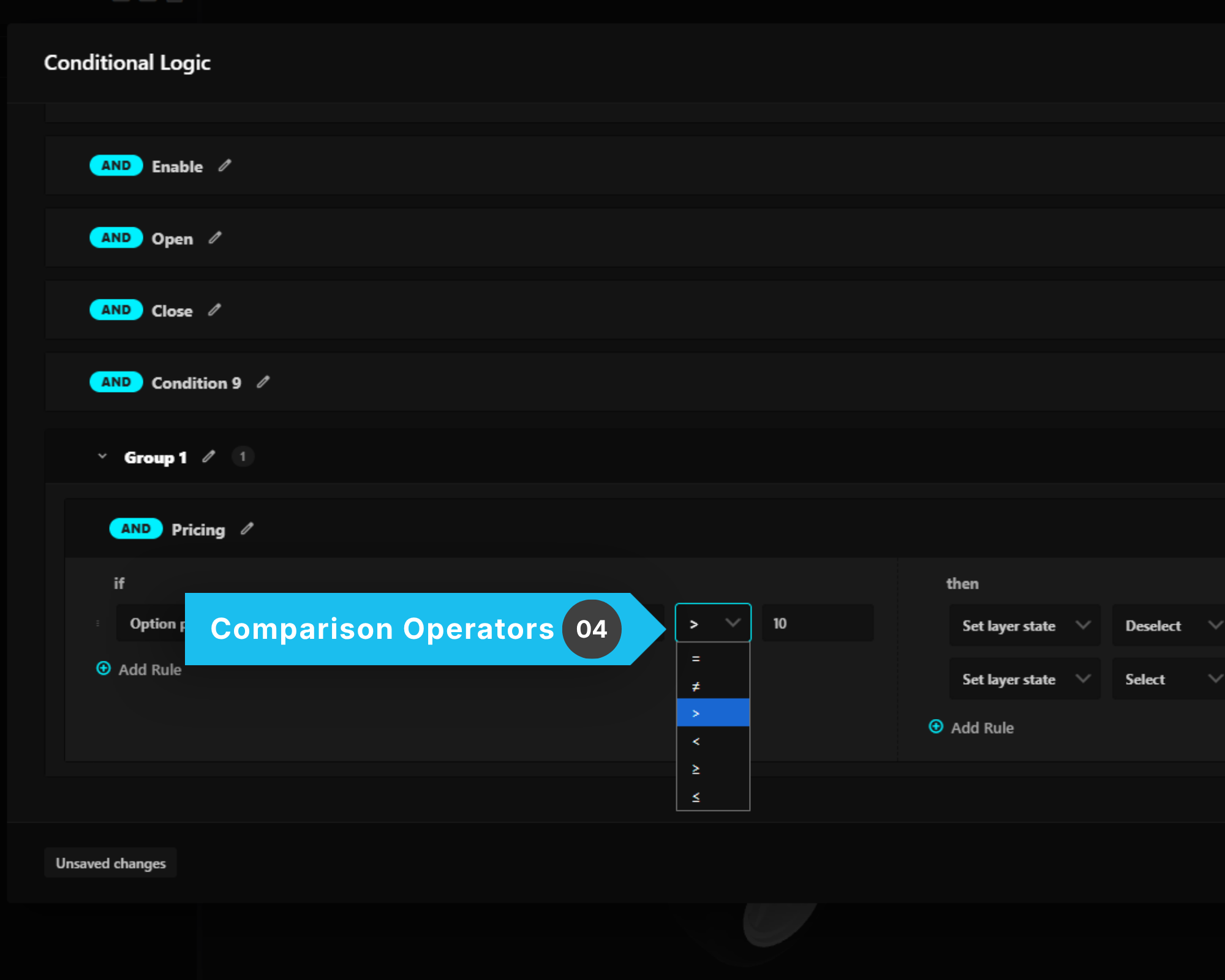
When using Option Price or Total Price, the following operators are available.
| Operator | Description |
|---|---|
| = | Equal to |
| ≠ | Not equal to |
| > | Greater than |
| < | Less than |
| ≥ | Greater than or equal to |
| ≤ | Less than or equal to |
5. Match Mode (ANY / ALL)
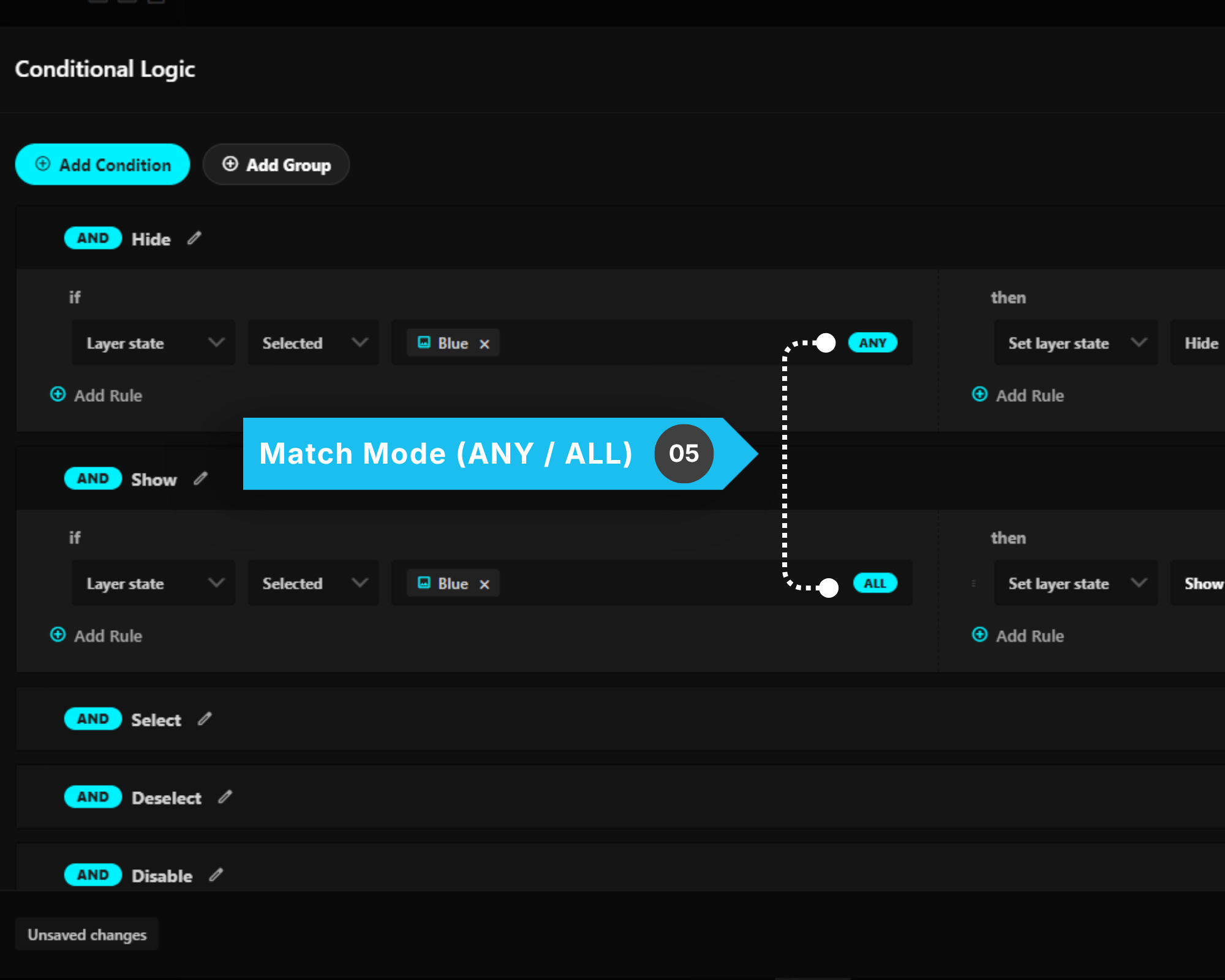
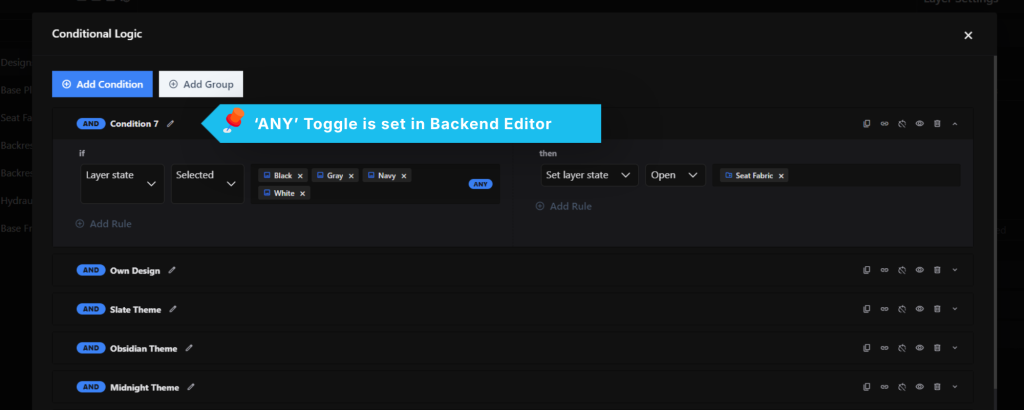
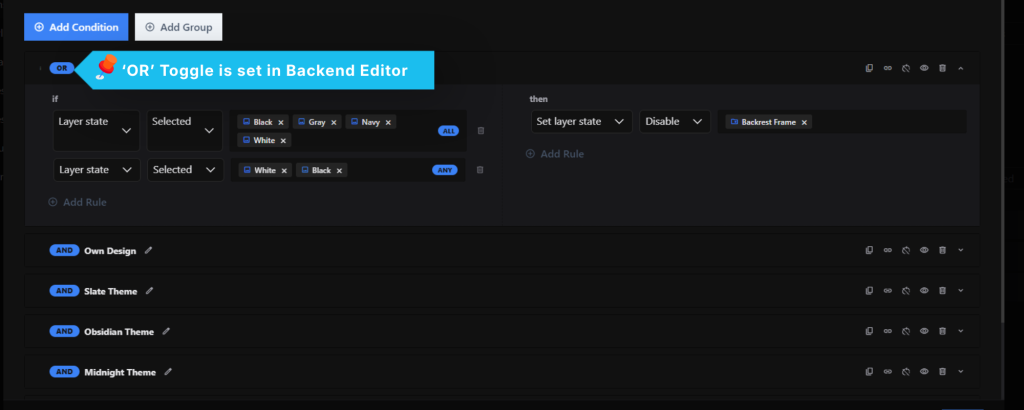
When multiple layers are selected in the IF condition, you can choose how they should be evaluated using the ANY or ALL toggle.
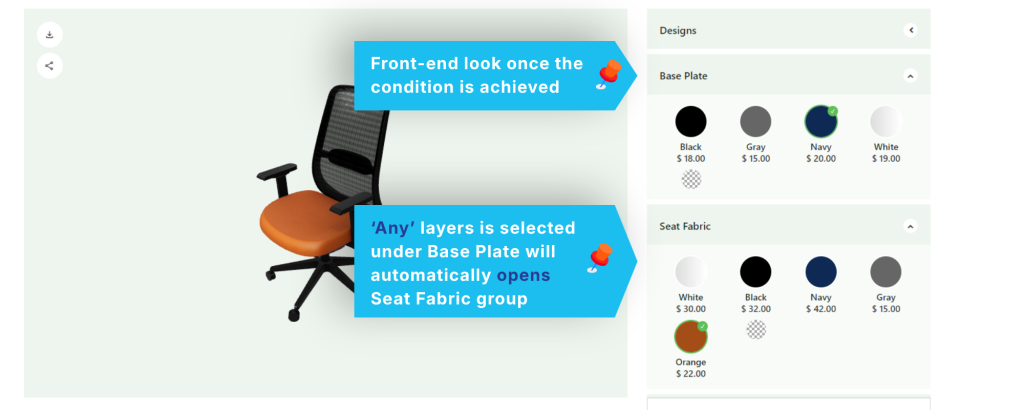
A. ANY
When ANY is selected, the condition is triggered if at least one of the selected layers satisfies the condition.
Example
Layers:
Blue
Black
White
If the condition is Selected, the rule will execute when Blue, Black, or White is selected.
B. ALL
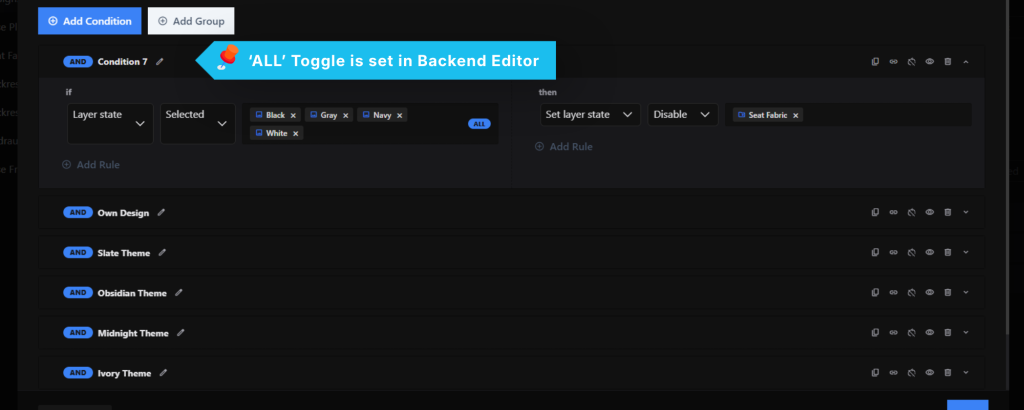
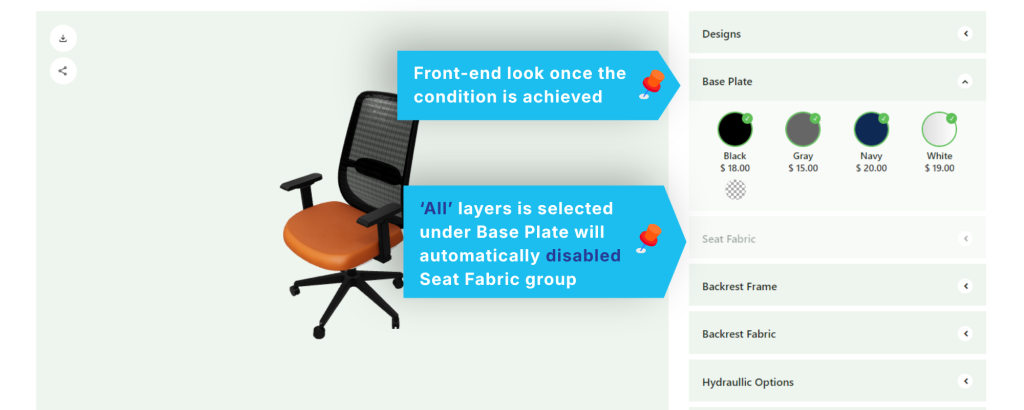
When ALL is selected, every selected layer must satisfy the condition before the rule is triggered.
Example
Layers:
Blue
Black
White
If the condition is Selected, the rule will only execute when Blue, Black, and White are all selected.
Match Mode (ANY/ALL) only applies to Layer State rules. Option Price and Total Price conditions have no match mode.
6. AND / OR Toggle
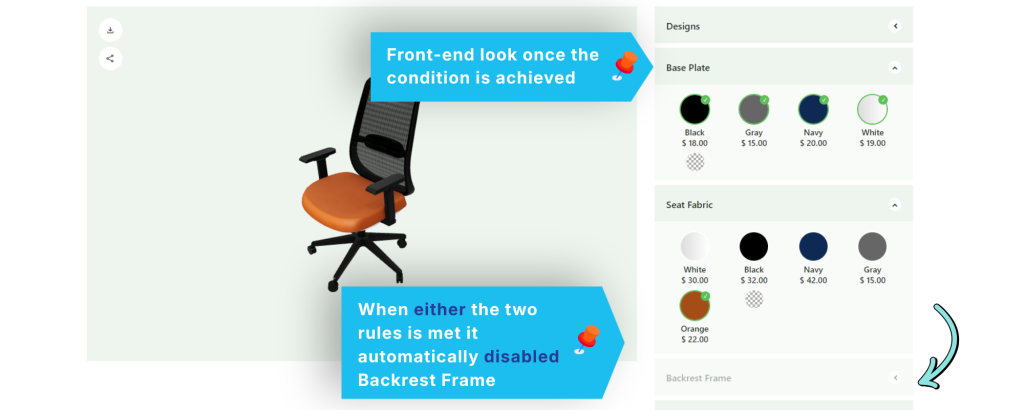
A clickable and/or chip on the condition header controls how multiple IF rules on that condition combine.
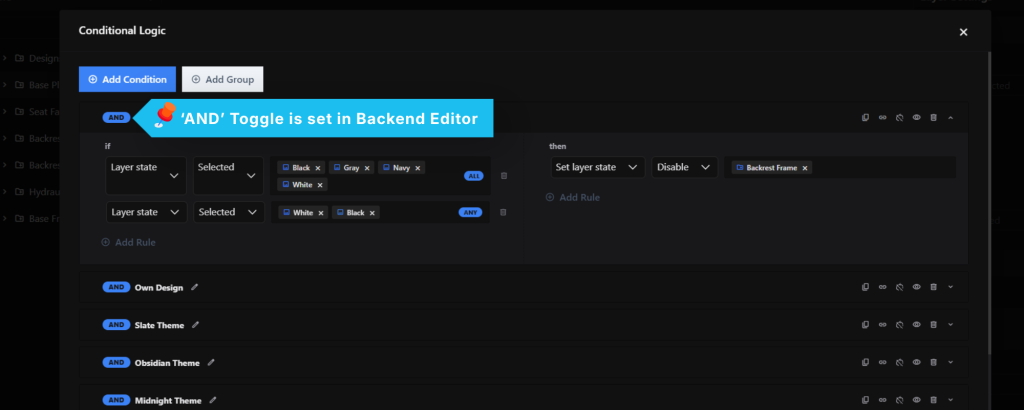
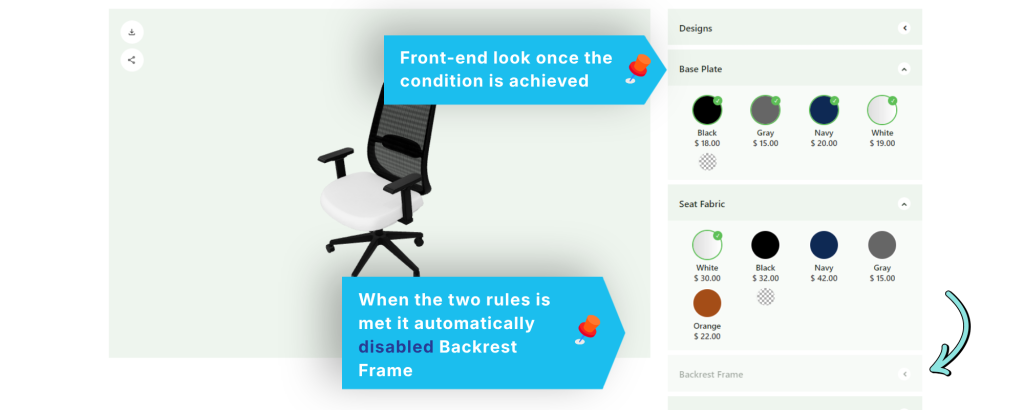
The operator applies to the IF section only — every THEN action always runs; there is no OR across actions.
7. THEN Section
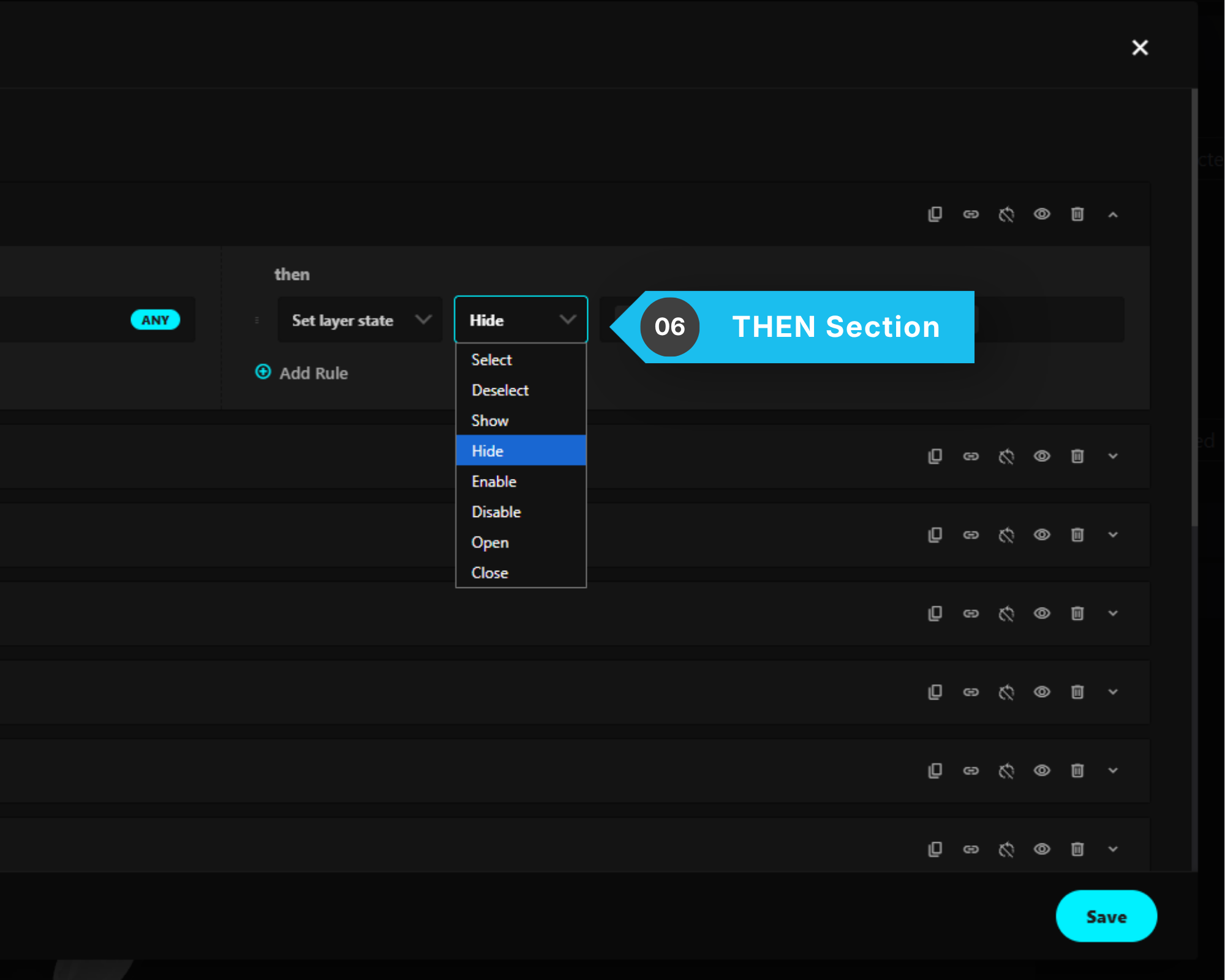
The THEN section defines the action(s) that will be performed when the IF condition is satisfied.
Each condition can contain one or more actions, allowing you to modify the state of one or multiple layers.
Action Type
Currently, the available action type is:
Set Layer State
Changes the state of the selected layer(s) when the condition is met.
Available Layer States
After selecting Set Layer State, you can choose one of the following actions:
- Select
- Deselect
- Show
- Hide
- Enable
- Disable
- Open
- Close
Open and Close apply to groups and subgroups only. If you target an option layer, the editor will warn you: “Open and Close only apply to groups.”
These actions correspond to the same Layer State Values described in the IF section. The only difference is that, instead of checking a layer’s current state, the THEN section changes the layer to the selected state.
For example:
IF
Color is Selected

THEN
Hide Texture Design 2
or
IF
Premium Package is Selected

THEN
Enable Carbon Wheels
This allows you to build dynamic configurator behaviors by changing the state of layers whenever the specified conditions are met.
8. Targeting a Group vs. an Option
Targeting a group behaves differently from targeting an option.
In IF: a group is treated as “at least one option inside it matches.” So an ALL match across two groups means “each group has one match” — not “every option matches.”
In THEN: Show, Hide, Enable, and Disable cascade to the group and everything inside it. Deselect affects the options inside only. Open and Close affect the group only. Select does nothing at all — groups aren’t selectable.
A group with no options inside it can never satisfy an IF rule.
9. Select & Deselect Guardrails
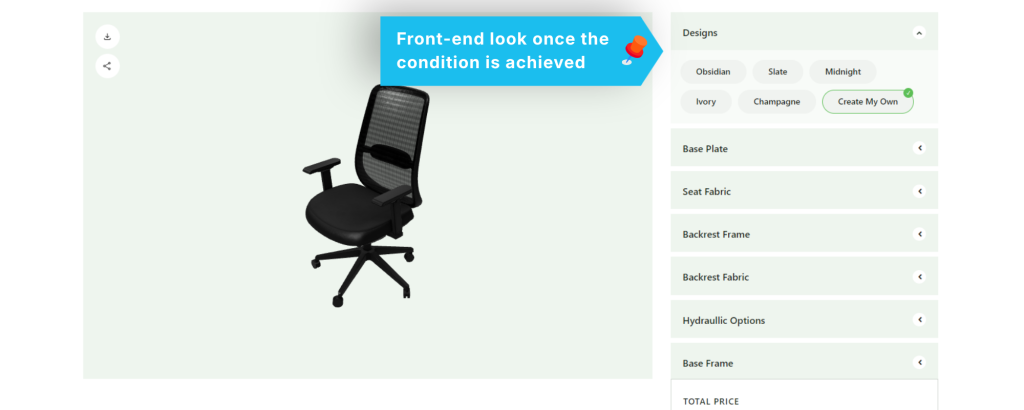
Two behaviors happen automatically, without a warning:
- Select on an option under a single-choice group automatically deselects its siblings.
- Deselect refuses to remove the last selected option of a required group, and does nothing in that case.
10. If a Layer Used by a Rule Is Deleted
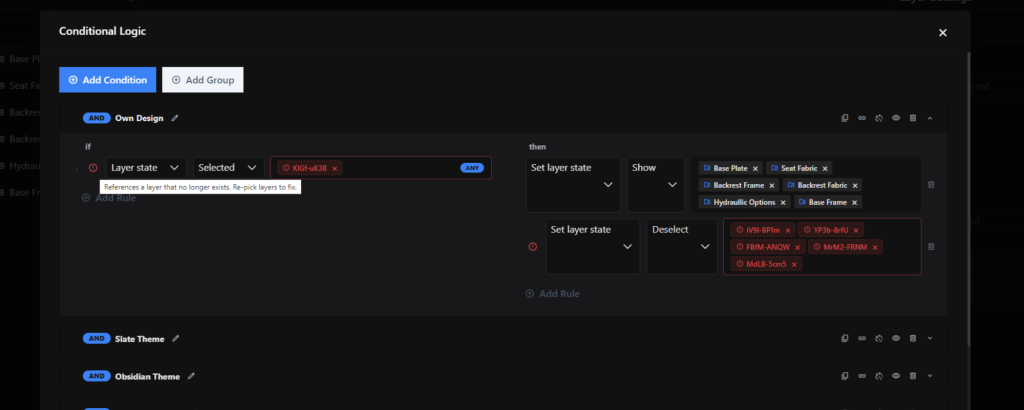
The editor flags the rule with “Missing layer” (“References a layer that no longer exists. Re-pick layers to fix.”). At runtime, that rule evaluates as false until it’s fixed.
11. Rules Run on Page Load
Rules are evaluated once when the page loads, before the visitor interacts with anything. If a condition is already true at load, its actions apply immediately.