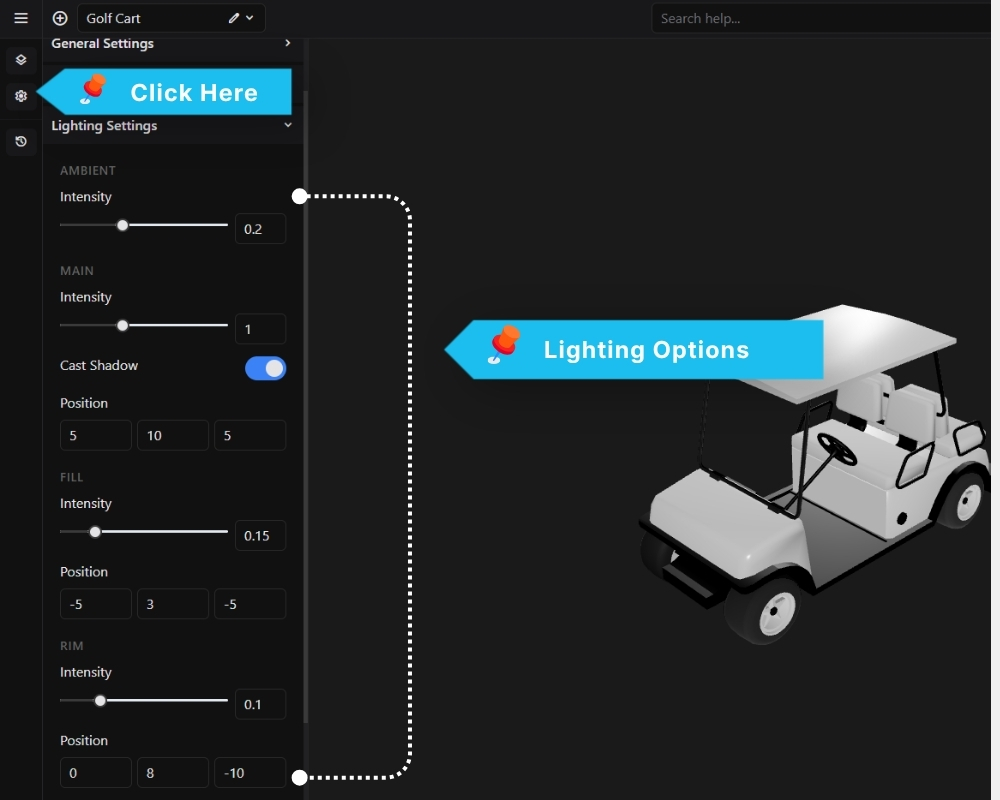
The Lighting Settings panel provides direct control over three independent lights: Ambient, Main, Fill, and Rim. Together they form a classic three-point lighting setup for product visualization.
Ambient
Intensity Sets the base level of non-directional light that illuminates the entire scene evenly. Keep this low (e.g. 0.2) to avoid washing out shadows and material depth.
Main
Intensity Controls the brightness of the primary directional light. This is the dominant light source that defines the main highlights and shadows on the model.
Cast Shadow Toggle to enable or disable shadow casting from the main light. Enabling this adds a ground shadow beneath the model, improving the sense of depth and realism.
Position Sets the X, Y, Z coordinates of the main light in 3D space. The default 5, 10, 5 positions it above and to the front-right of the model.
Fill
Intensity Controls the brightness of the fill light, which softens harsh shadows created by the main light. Typically kept lower than the main intensity (e.g. 0.15).
Position Sets the X, Y, Z coordinates of the fill light. The default -5, 3, -5 places it on the opposite side and slightly behind the model.
Rim
Intensity Controls the brightness of the rim light, which adds a subtle highlight along the edges of the model to help it stand out from the background.
Position Sets the X, Y, Z coordinates of the rim light. The default 0, 8, -10 positions it directly behind and above the model.